Step by Step Guide

Enabling Child Notifications and Reminders

Send chore reminders and notifications to your child’s device.

1

First, make sure notifications are allowed for the app on your child’s device.

On iPhone and iPad: open the Settings app, tap Notifications, then Chores & Allowance Bot. Turn on Allow Notifications, and also Lock Screen, Notification Center, Banners and Sounds. Make sure Do Not Disturb or Focus is off.

On Android: open the Settings app, tap Notifications, then App notifications (or See all), and tap Chores & Allowance Bot. Turn on all of its notifications.
2

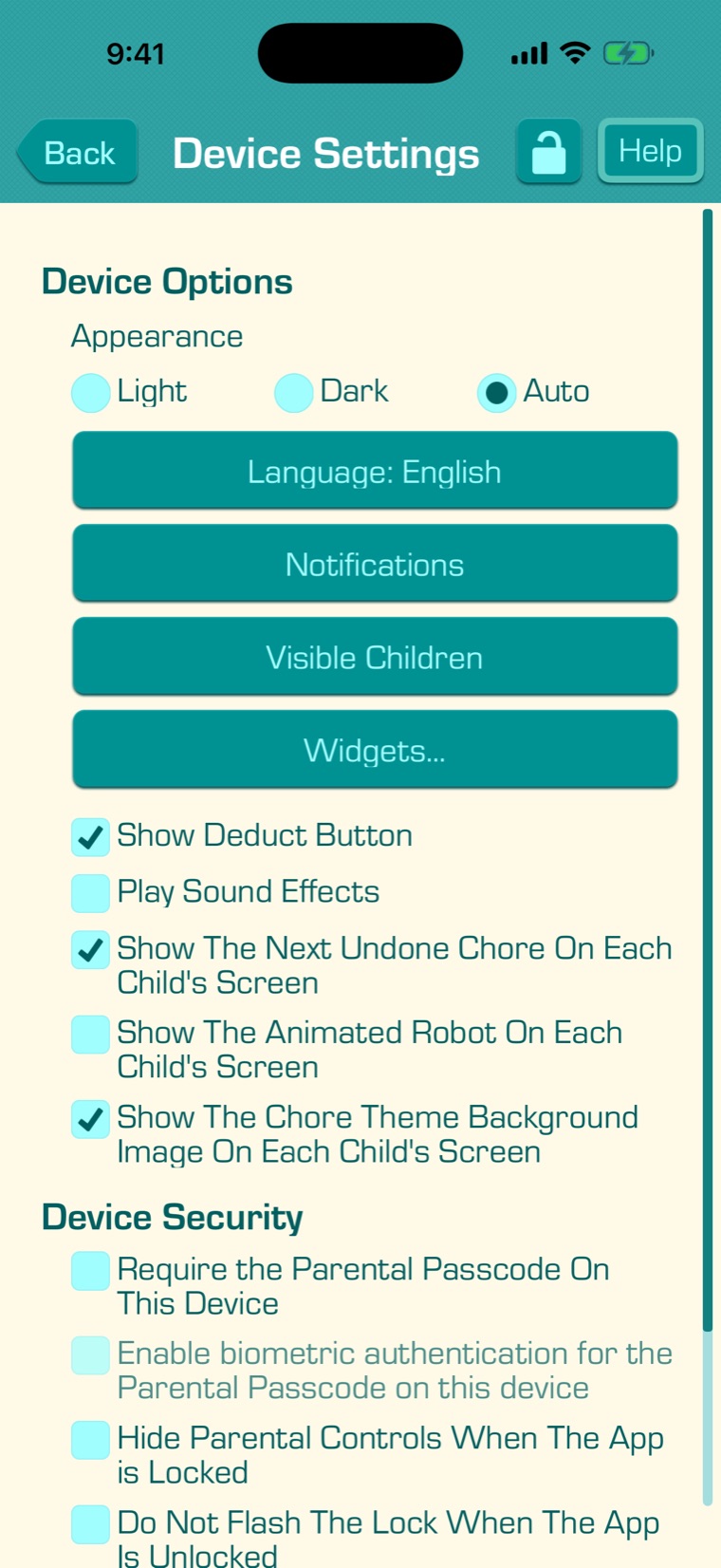
Then open the app’s notification settings for your child’s device. You can do this on your child’s device: tap the Settings tab, then “Device Settings”, then “Notifications”.

If your child’s device is linked with a code, you can do it from your own device instead: tap the Settings tab, then “Linked Devices”, tap your child’s device, then “Device Settings” and “Notifications”.

3

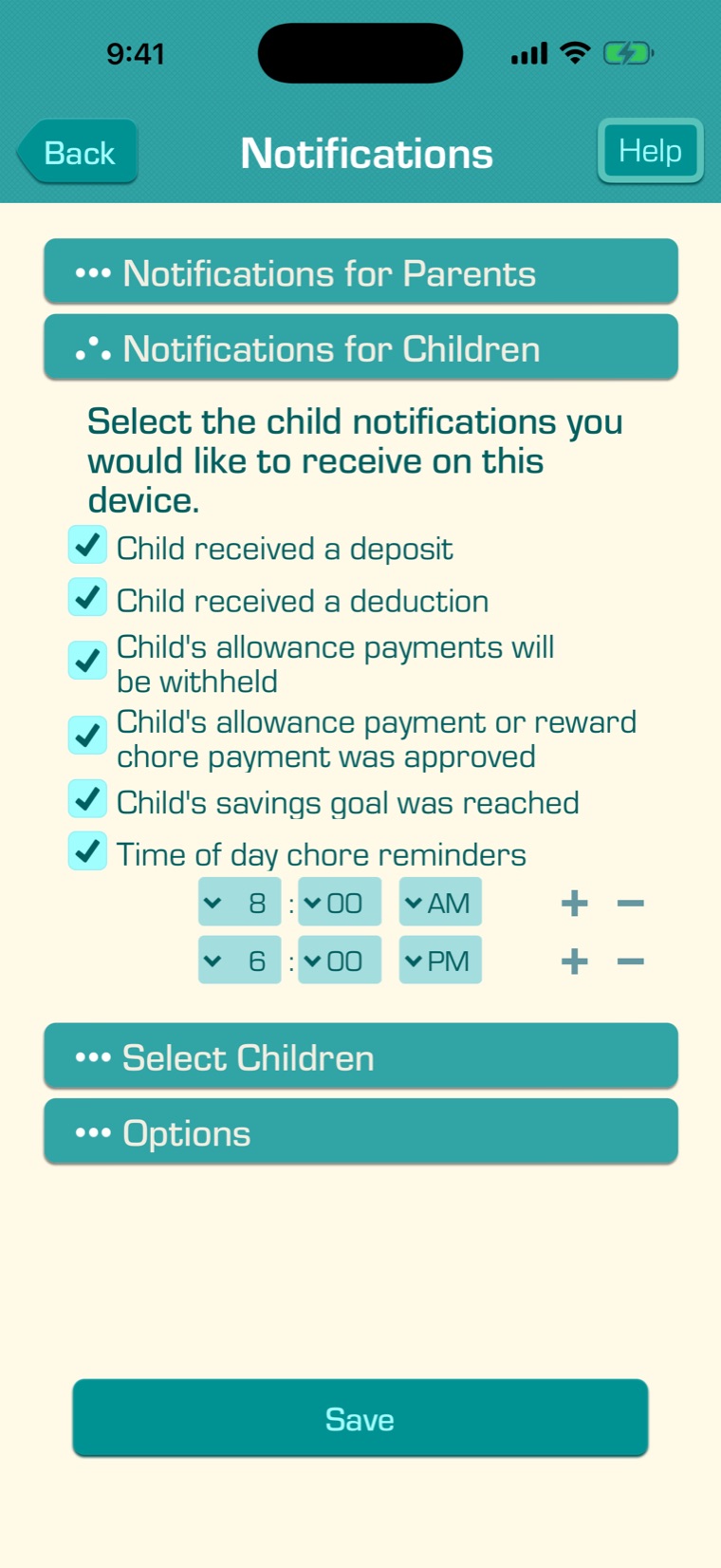
Tap the section titled “Notifications for Children”.

Select the notifications your child should get on this device.

For “Time of day chore reminders”, tap the plus button (+) to add up to four times of the day for chore reminders. In this example there are reminders at 8:00 AM and 6:00 PM.

4

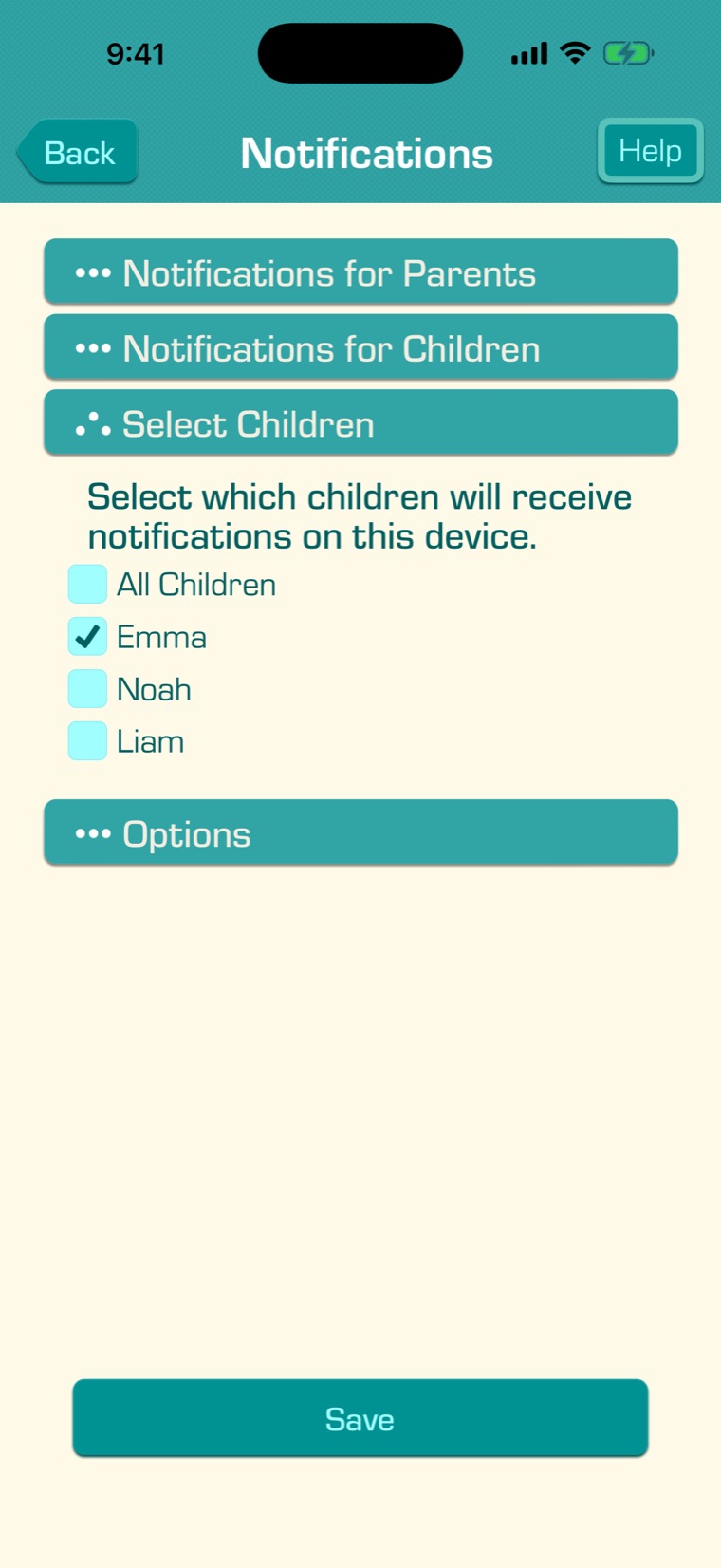
Tap the section titled “Select Children” and select the children who should get notifications on this device.

Time of day chore reminders only arrive if the child still has chores left to do.

Tap “Save”.

5

Notifications and reminders are now turned on for your child’s device.

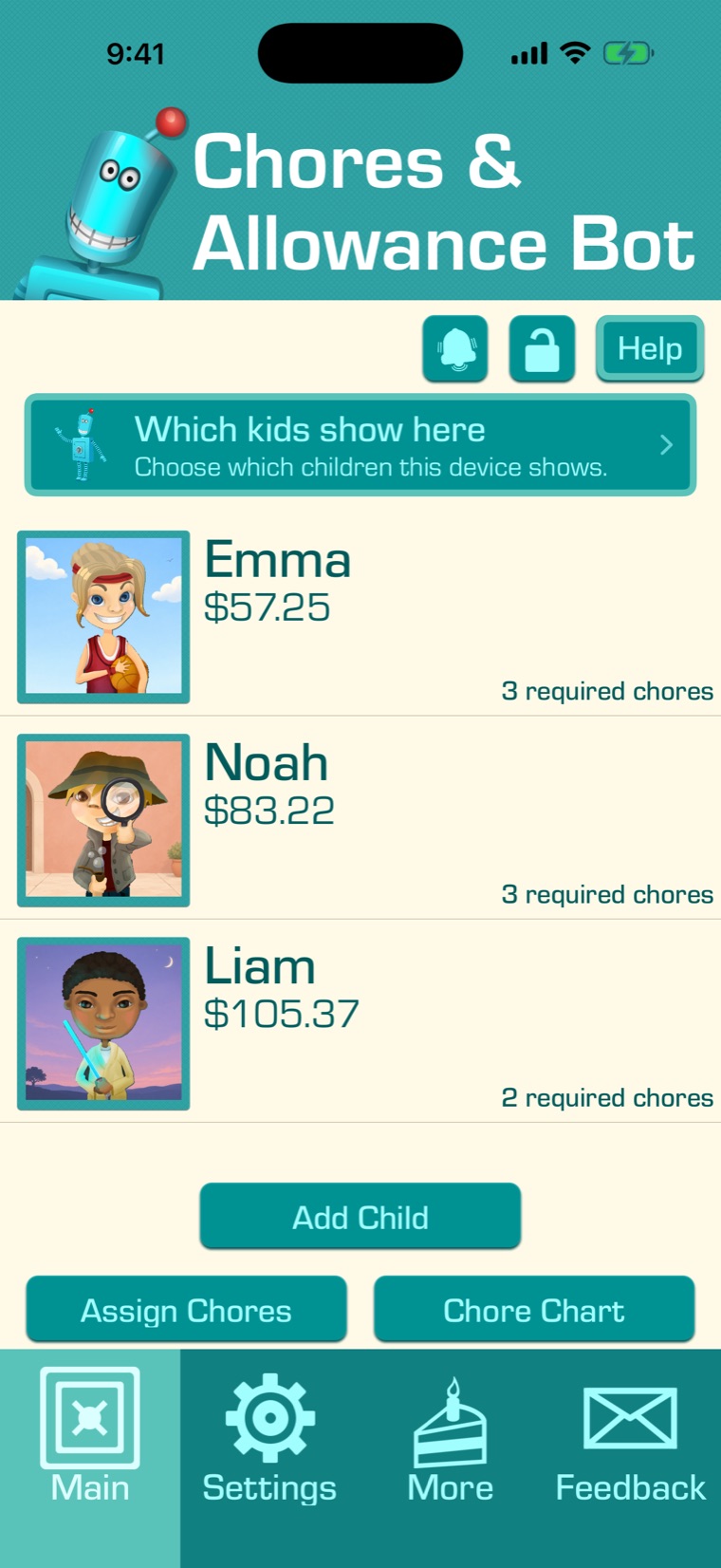
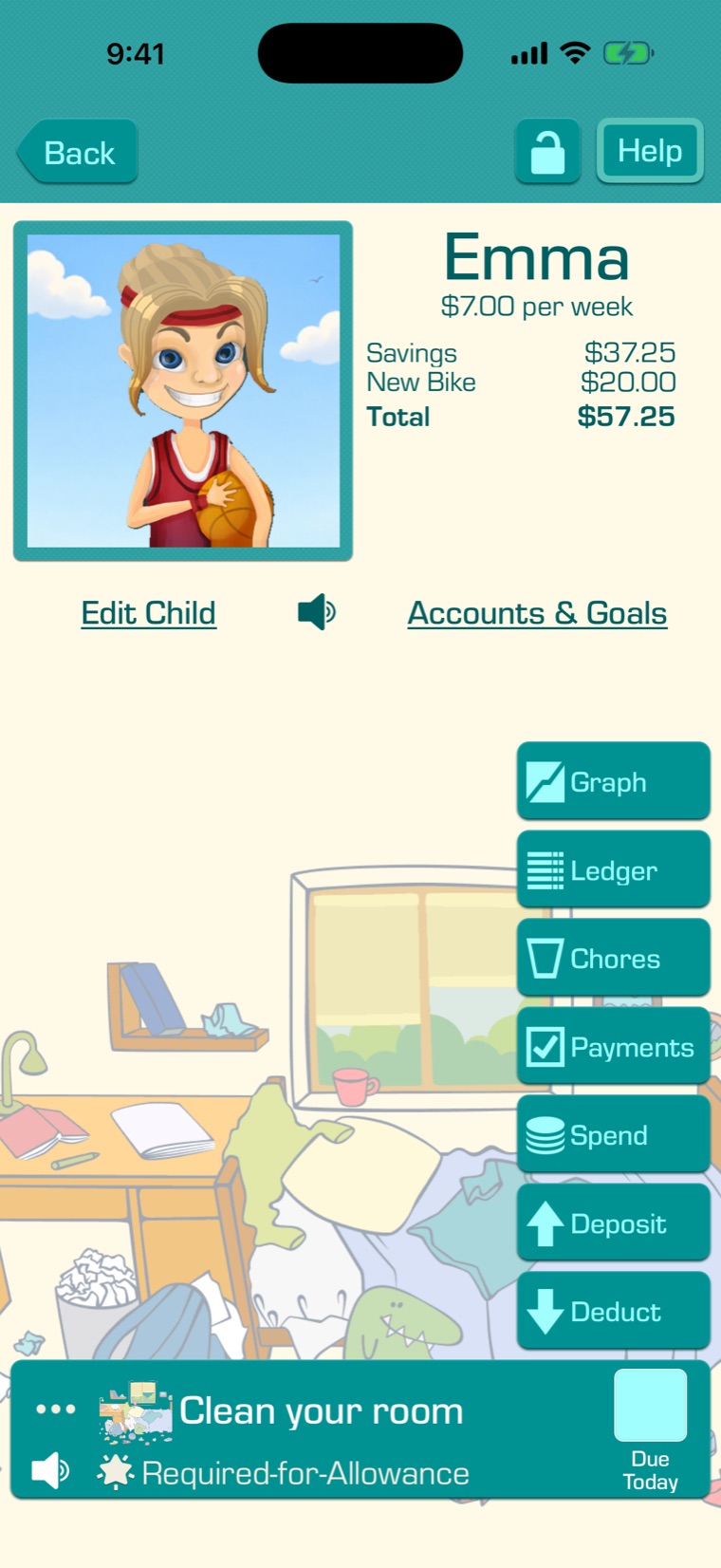
You can also send your child a reminder at any time. On your own device, tap your child on the main screen.

6

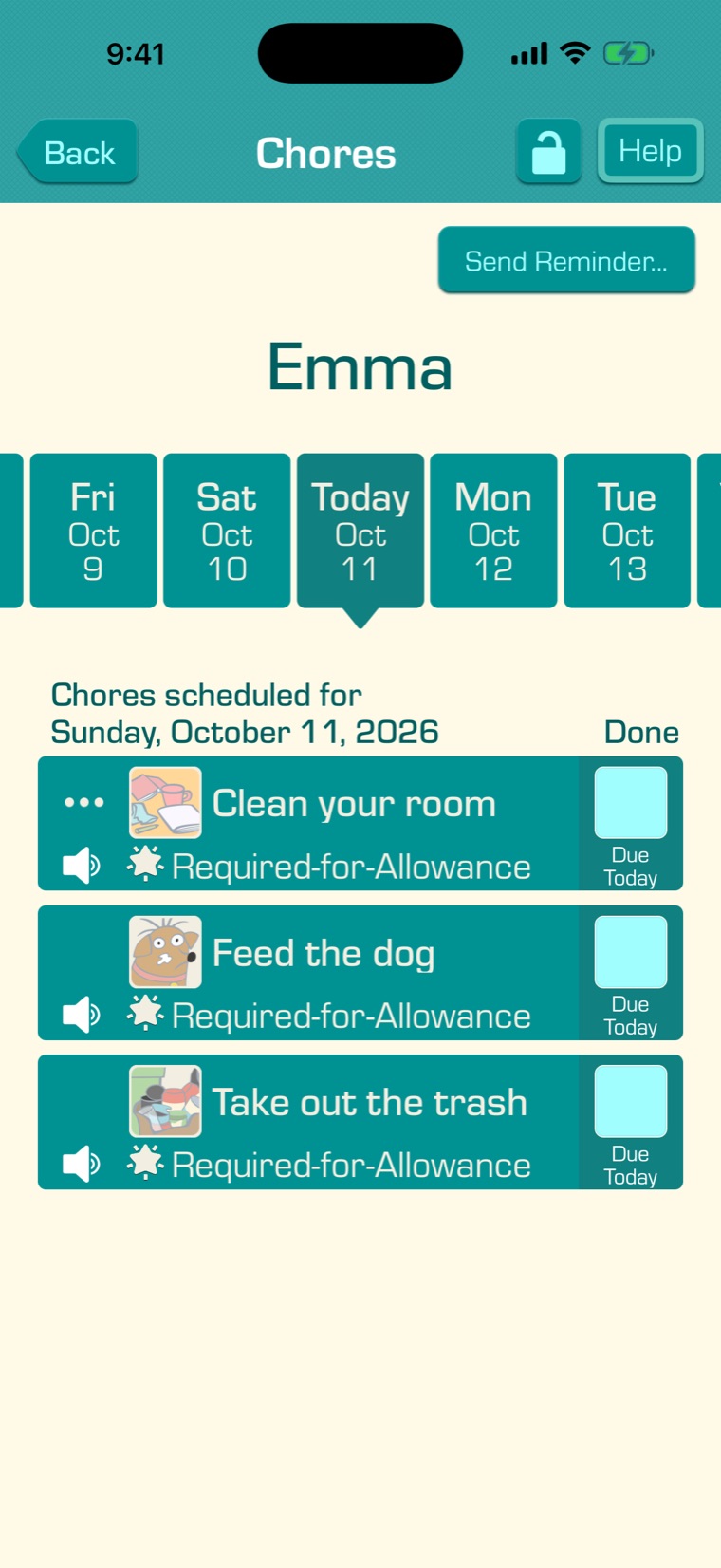
Tap “Chores”.

7

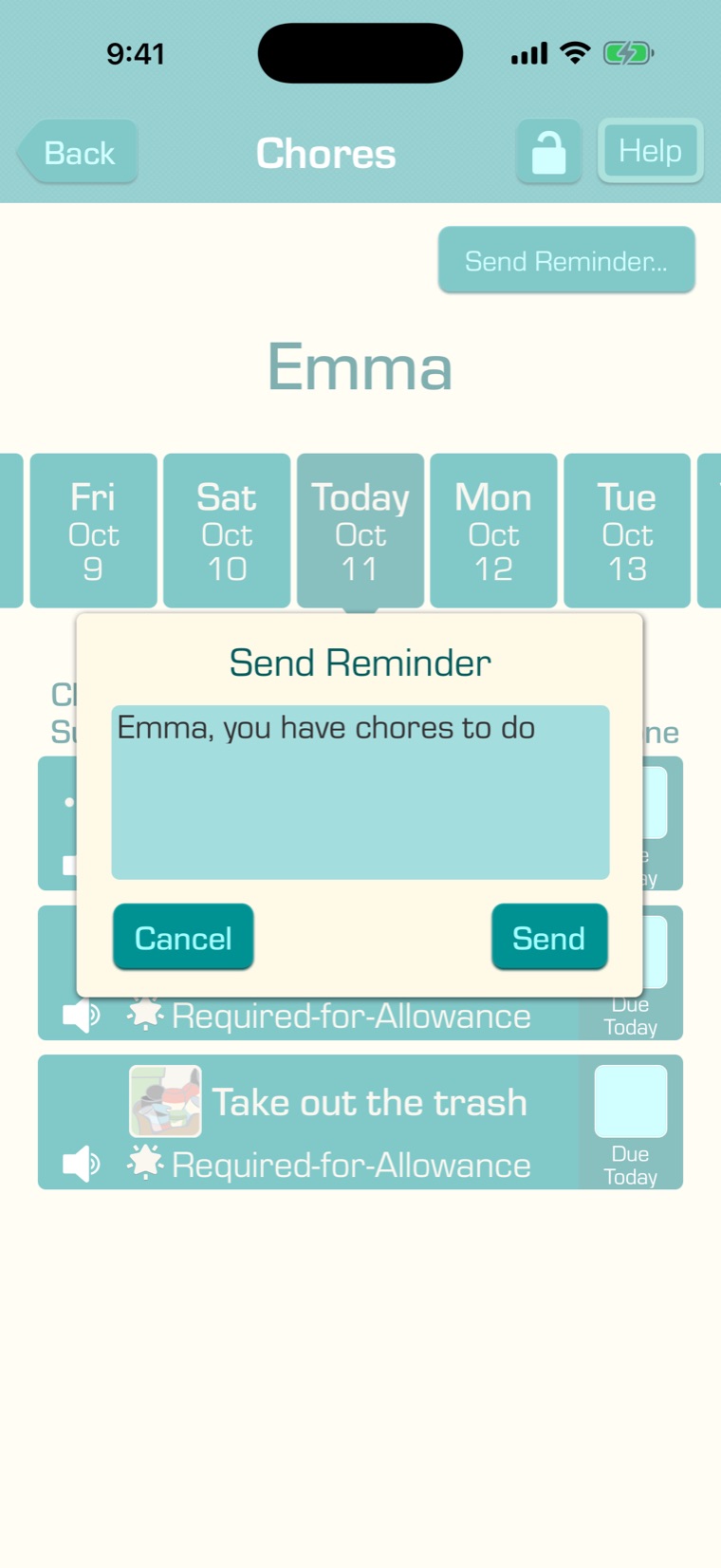
Tap “Send Reminder...” near the top right of the screen.

8

The reminder says “Emma, you have chores to do”. You can change it to say anything you like.

Tap “Send”, and Emma sees the reminder on her device.

Other notifications are sent when you deposit or deduct money, withhold allowance, or approve a payment, and when your child reaches a savings goal. Parents can get notifications too, under “Notifications for Parents”: when a child completes a chore or spends money, and when payments are waiting to be approved.