Step by Step Guide

Approving Allowance Payments

Choose how allowance and reward chore payments are approved, and approve them on the Payments screen.

1

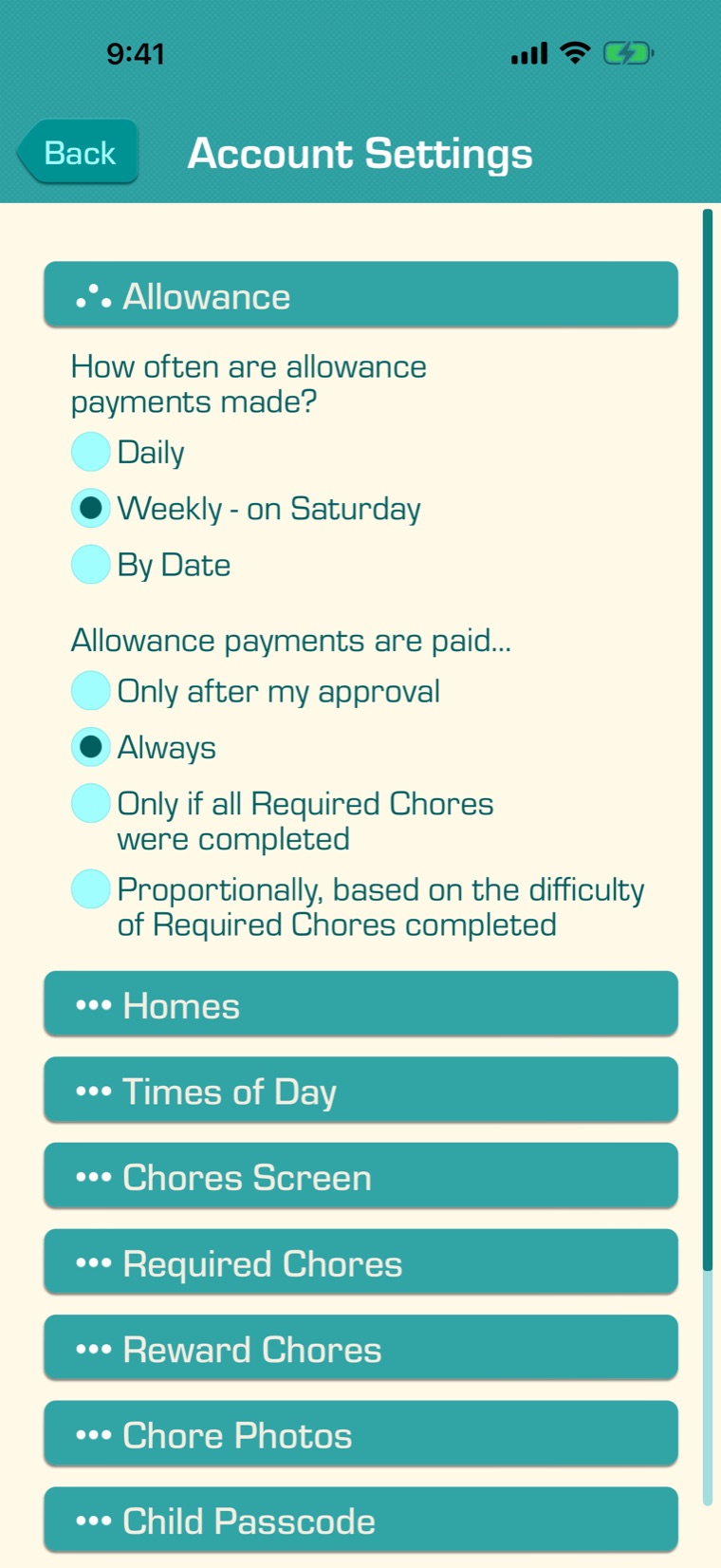
Allowance is paid at the start of each payment day, in your account’s time zone: every day, every week on the day you choose, or on the dates you choose. In the Settings tab, under Account Settings, open “Allowance”.

Under “Allowance payments are paid…”, choose:

  • Only after my approval: each payment waits for you.
  • Always: each payment is approved by itself.
  • Only if all Required Chores were completed (Premium).
  • Proportionally, based on the difficulty of Required Chores completed (Premium): the payment is approved for the share of the Required Chores’ difficulty that was done.

The Required Chores that count for a payment are those since the last payment day, up to the day before. Each child’s amount is in Edit Child.
2

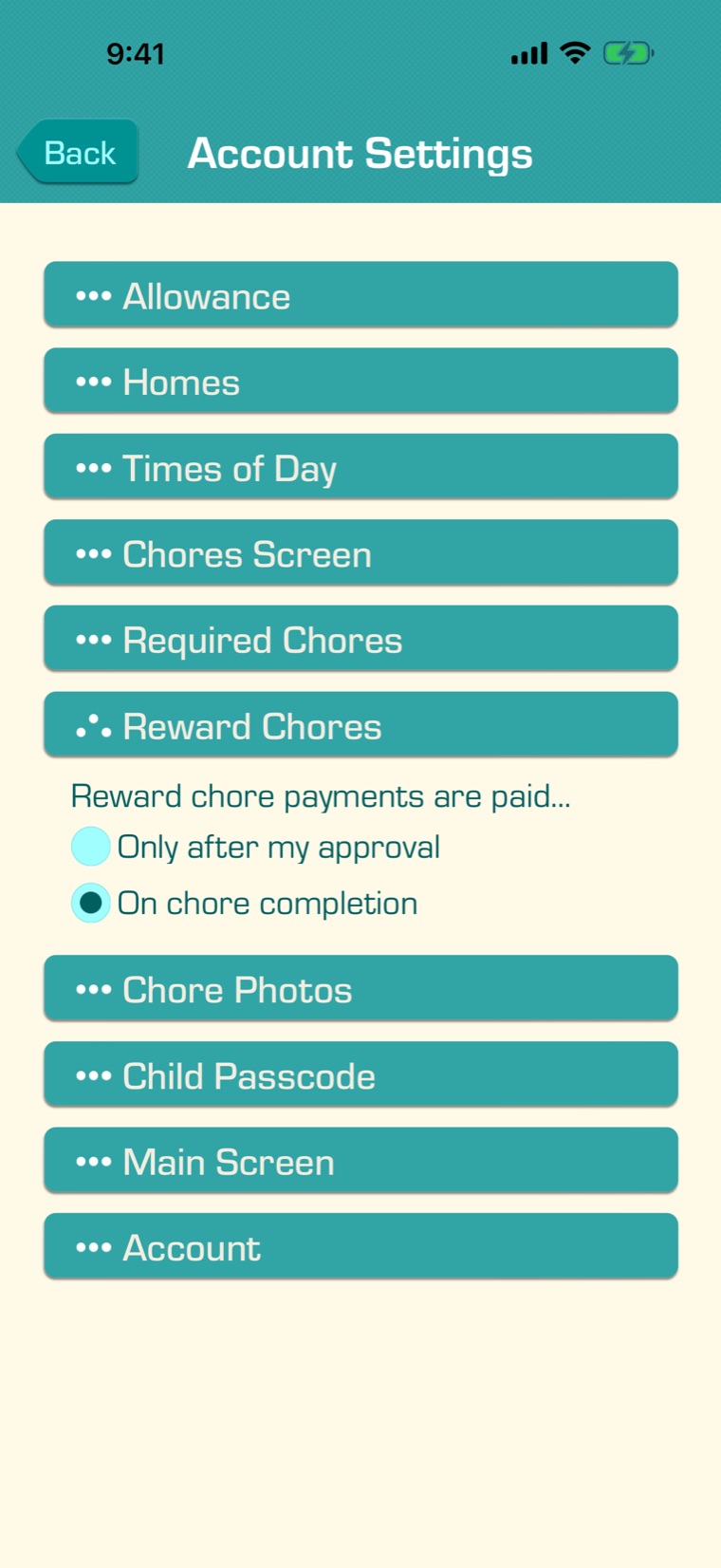
Under “Reward chore payments are paid…” in the “Reward Chores” section, choose whether reward chores wait for your approval or are paid when they’re checked off. Reward chore payments don’t wait for the allowance day.

3

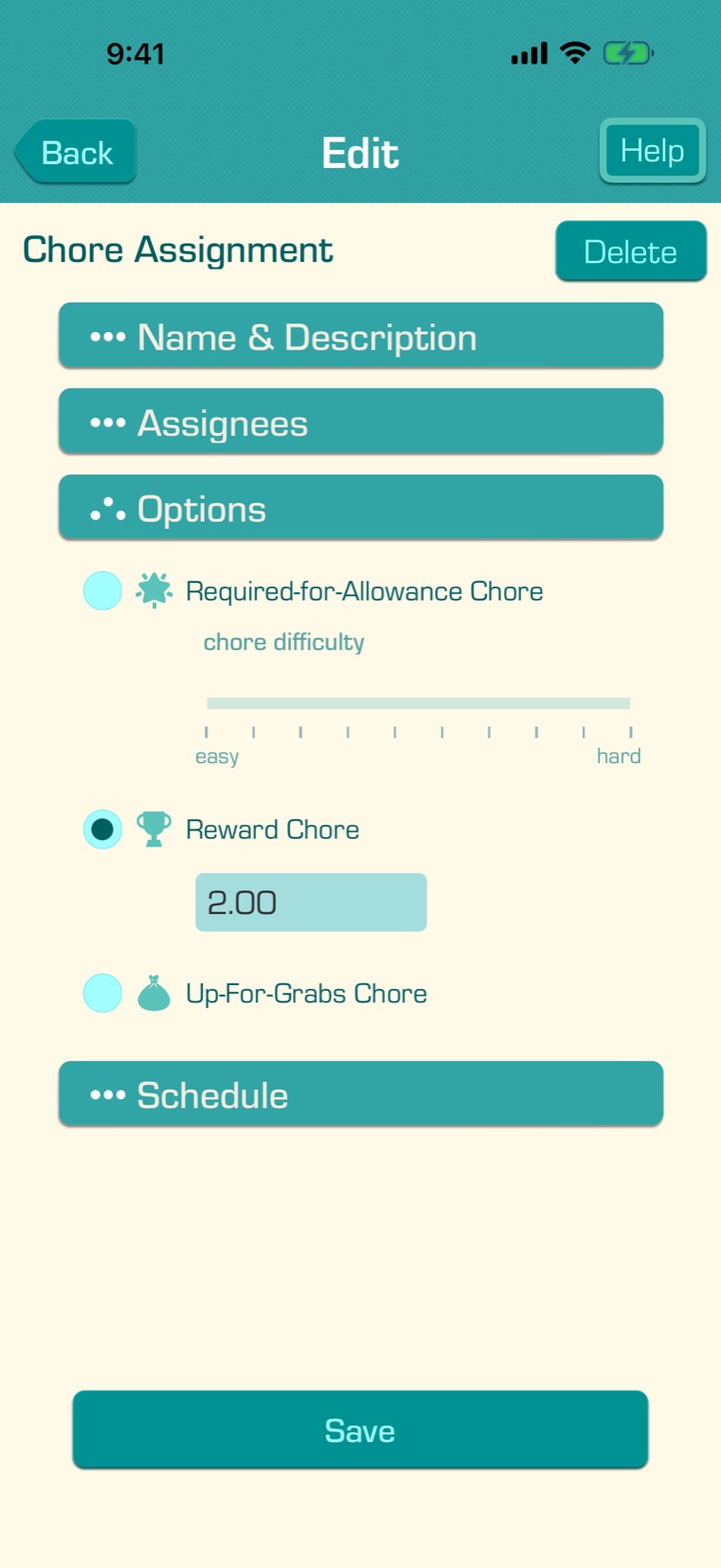
For proportional approval, give each Required-for-Allowance chore a “chore difficulty”, from easy to hard, in the chore editor under “Options”.

4

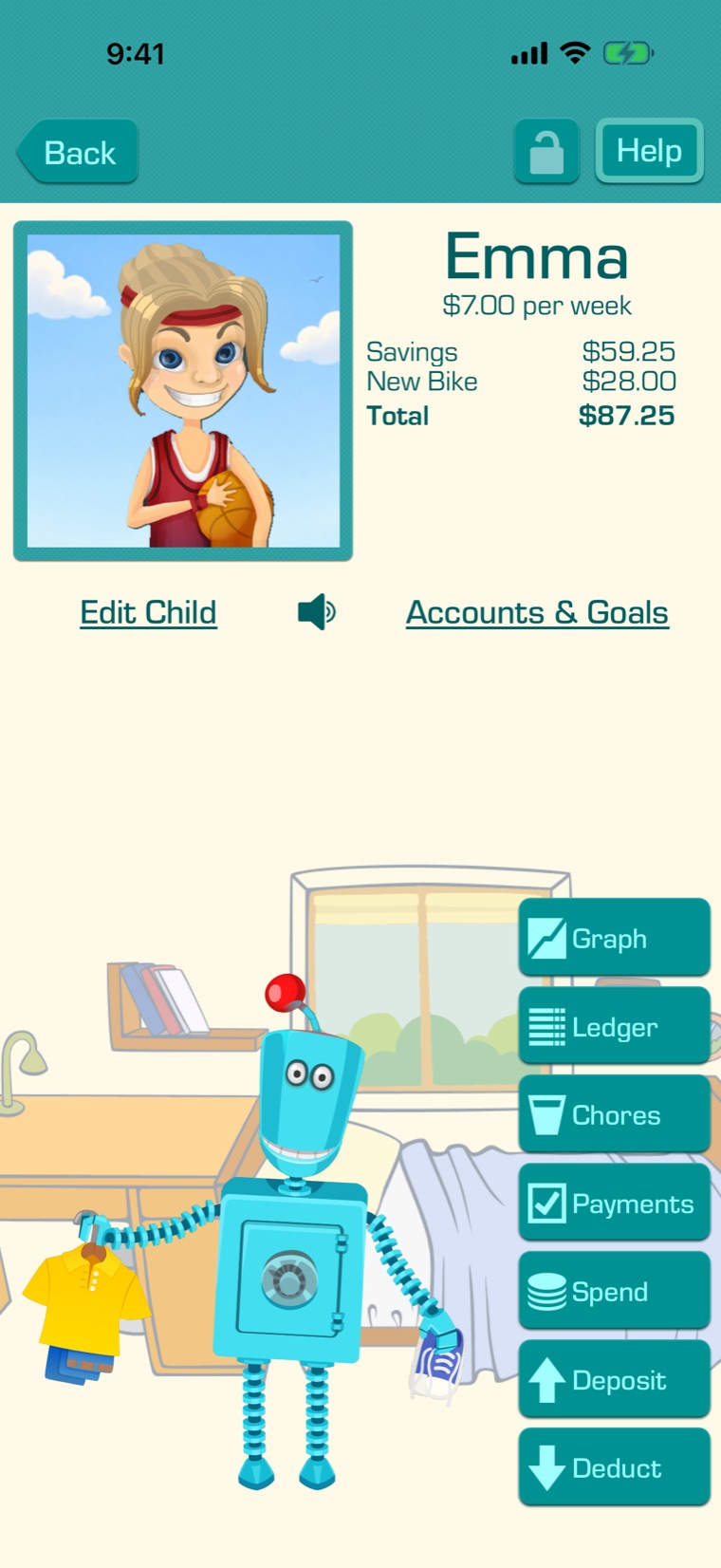
When payments are waiting, your child’s card on the main screen says so, like “1 payment waiting”. Tap your child, then “Payments”.

5

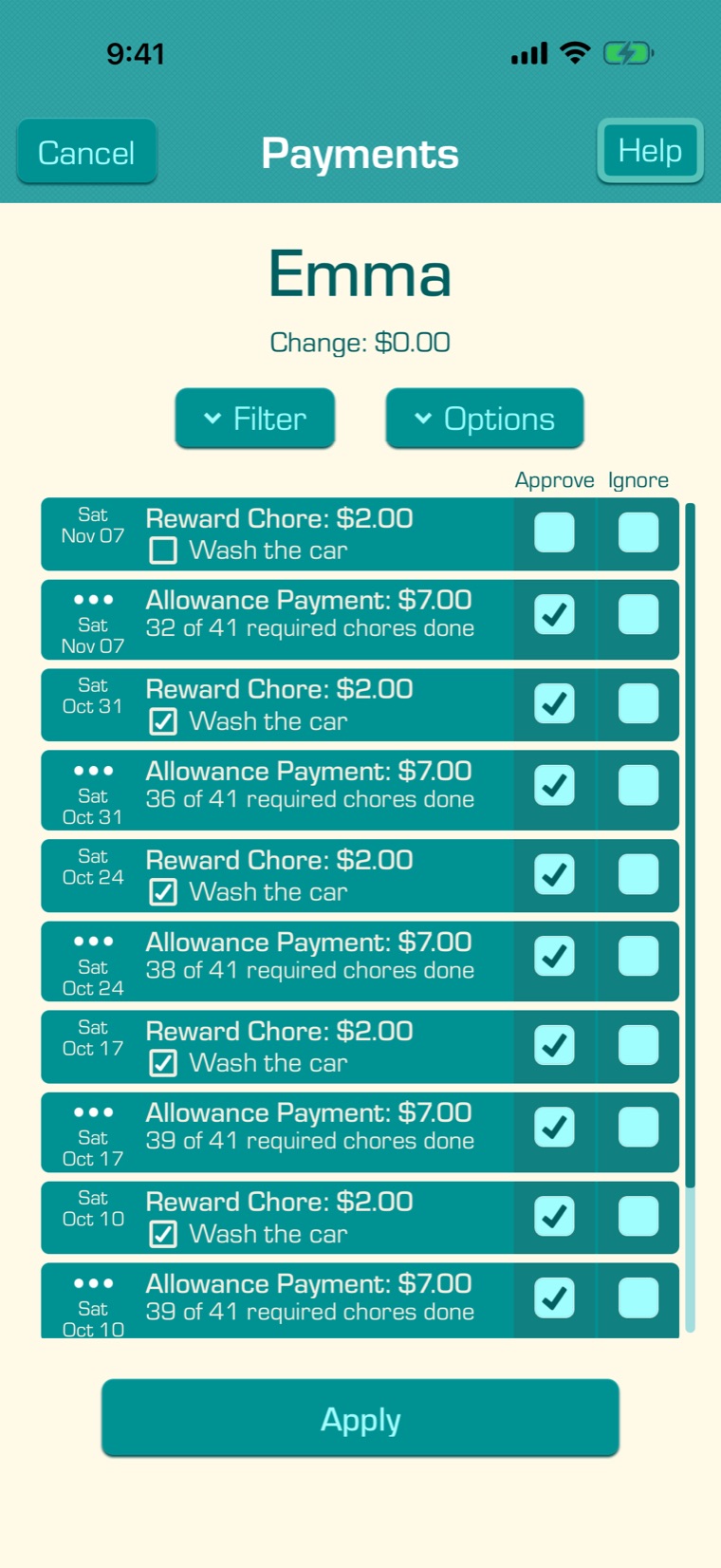
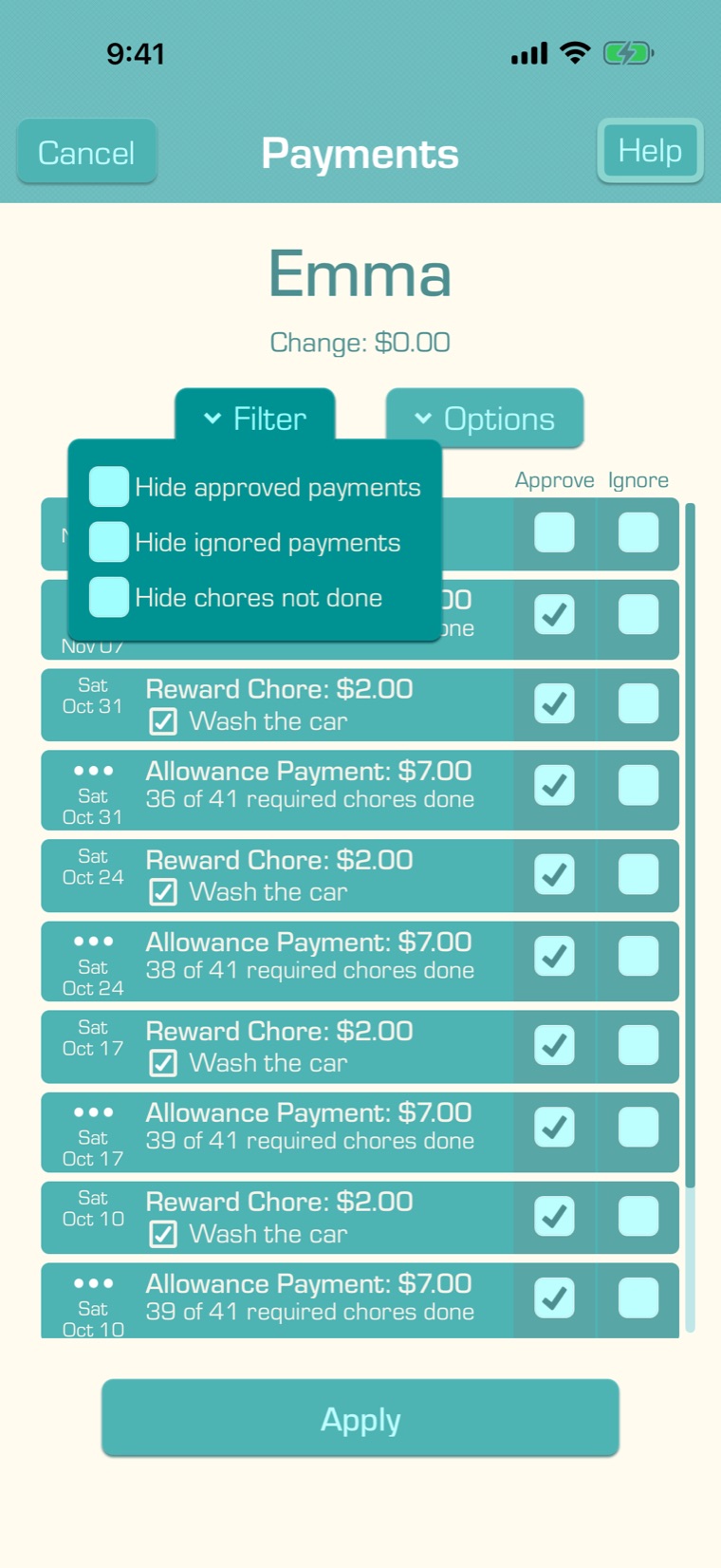
The Payments screen lists your child’s allowance payments and reward chores, newest first. Tick “Approve” to approve one, or “Ignore” for one you won’t pay; you won’t be reminded about ignored payments. “Change:” shows how much your child’s savings will change. Tap “Apply” to save, or “Cancel” to leave without changes.

Approve only reward chores that are done: a done chore has a check mark under its name.

6

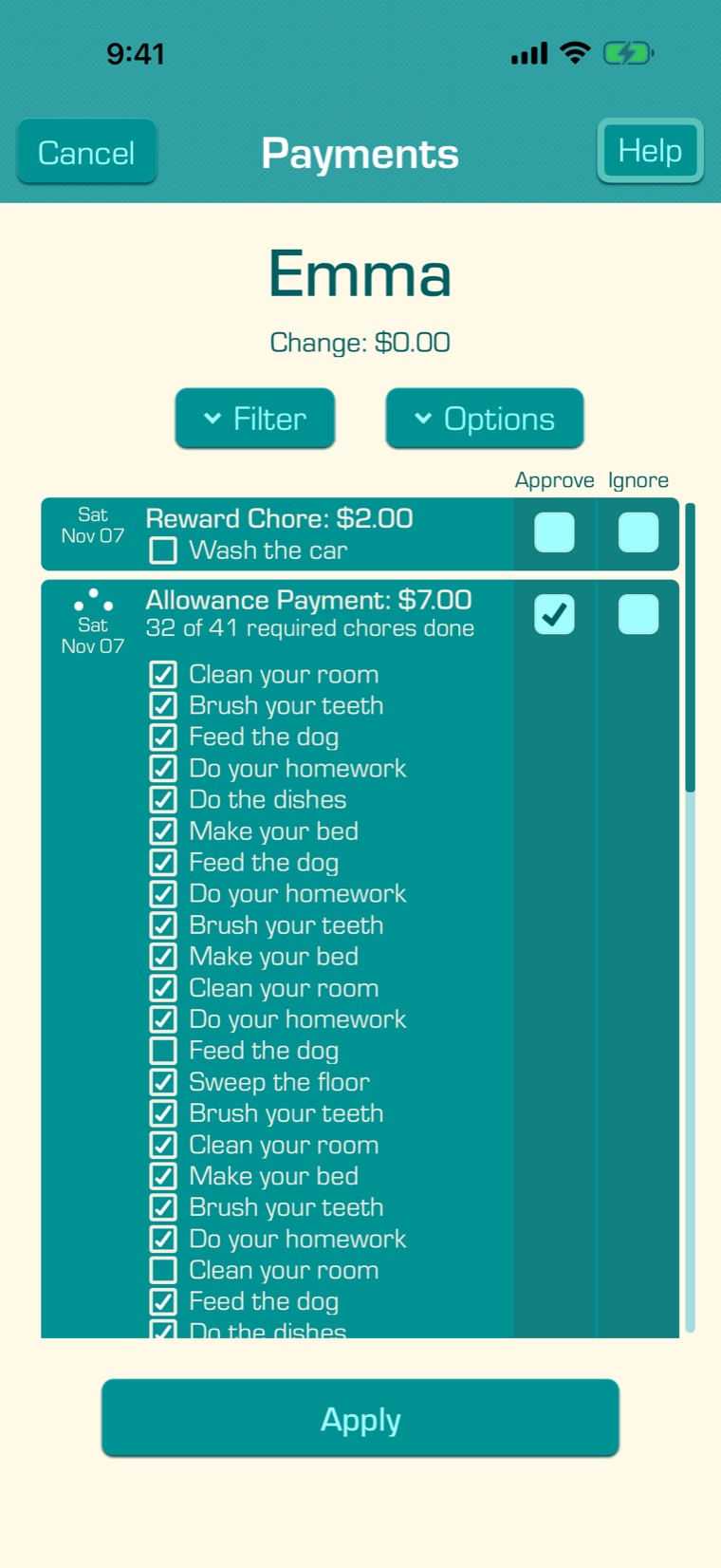
Tap the dots on an allowance payment to see its Required Chores, and which of them were done.

7

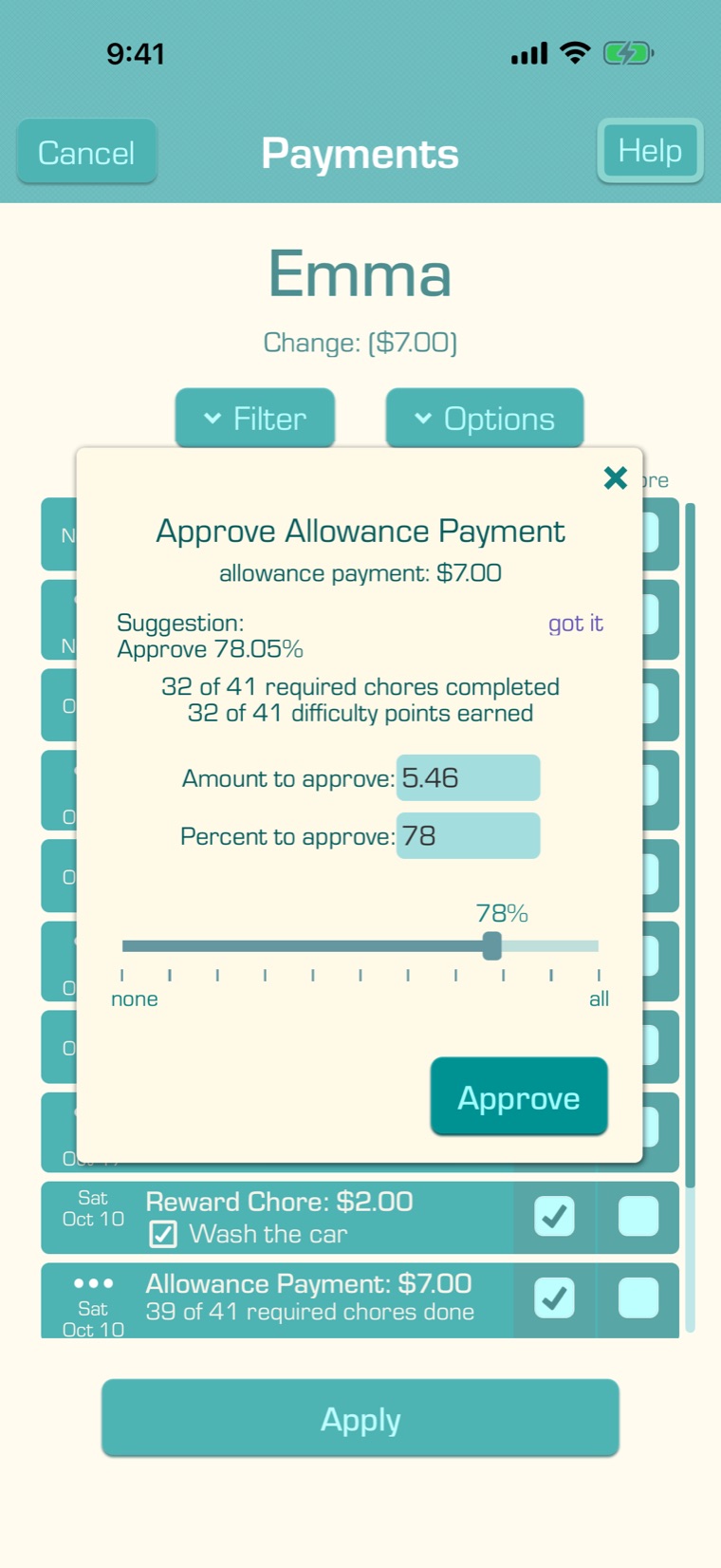
When you tick “Approve” on an allowance payment, you can approve part of it: the app suggests a share based on the Required Chores done (tap “explain…” to see why). Change the amount or the percent, or drag the slider, then tap “Approve”. Approving part of a payment is a Premium feature.

To always approve the whole payment instead, tap “Options” and choose “Approve 100% of allowance payment”.

8

“Filter” can hide approved payments, ignored payments, and chores that weren’t done.

9

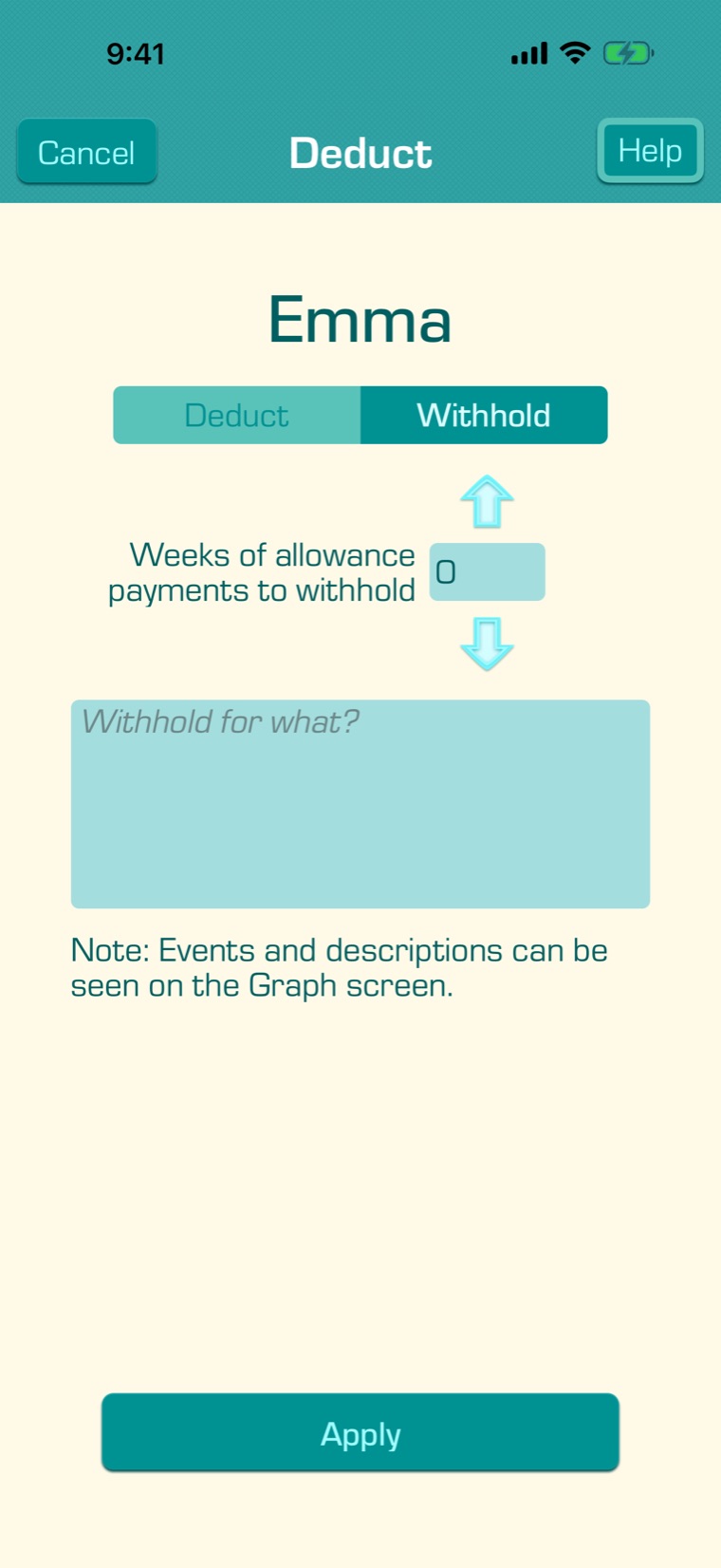
To withhold future allowance, tap your child, then “Deduct”, and choose “Withhold”. Choose how many allowance payments to withhold, add a reason if you like, and tap “Apply”.

10

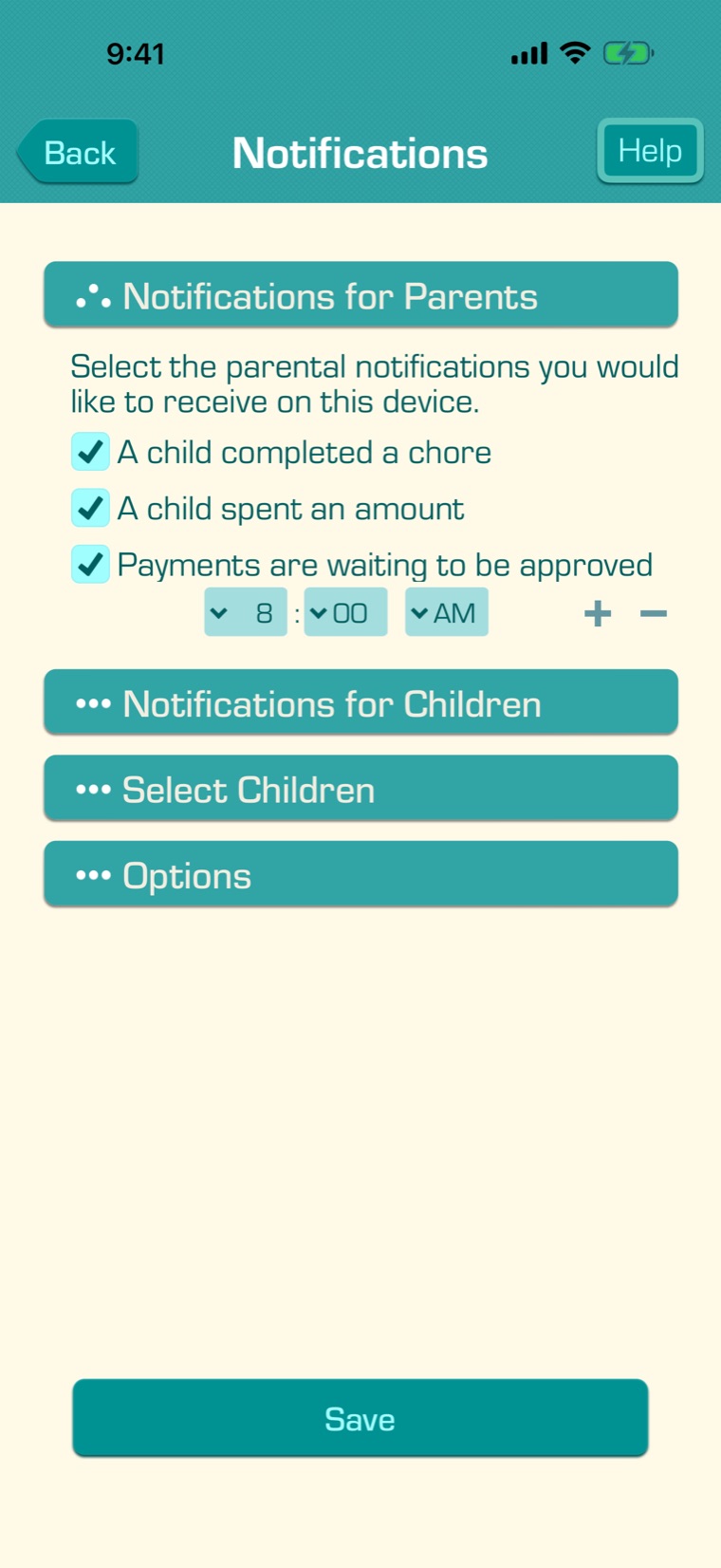
Parents can get a reminder when payments are waiting: in the Settings tab, under Device Settings, then Notifications, “Payments are waiting to be approved” under “Notifications for Parents”, at the times you choose. With Premium, children can get a notification when a payment is approved.

You can change an approval later on the Payments screen, or in your child’s Ledger. With Premium, you can go back to the start of last month; without it, 7 days.