
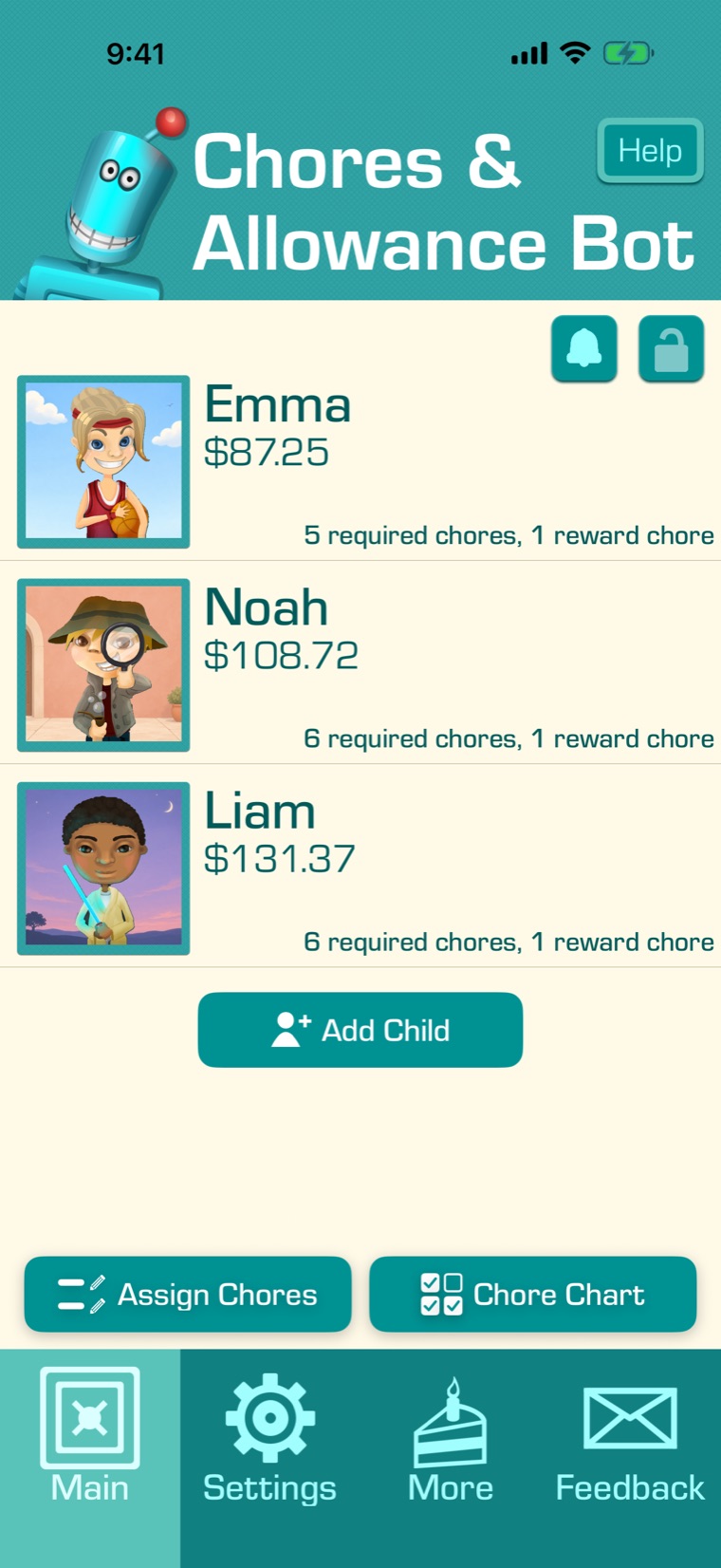
On the main screen, tap “Chore Chart”. If the app is locked, it asks for the parental passcode.
Using the Chore Chart
See every chore for all your children, weeks back and ahead, and check off chores on any day. A Premium feature.
1
2
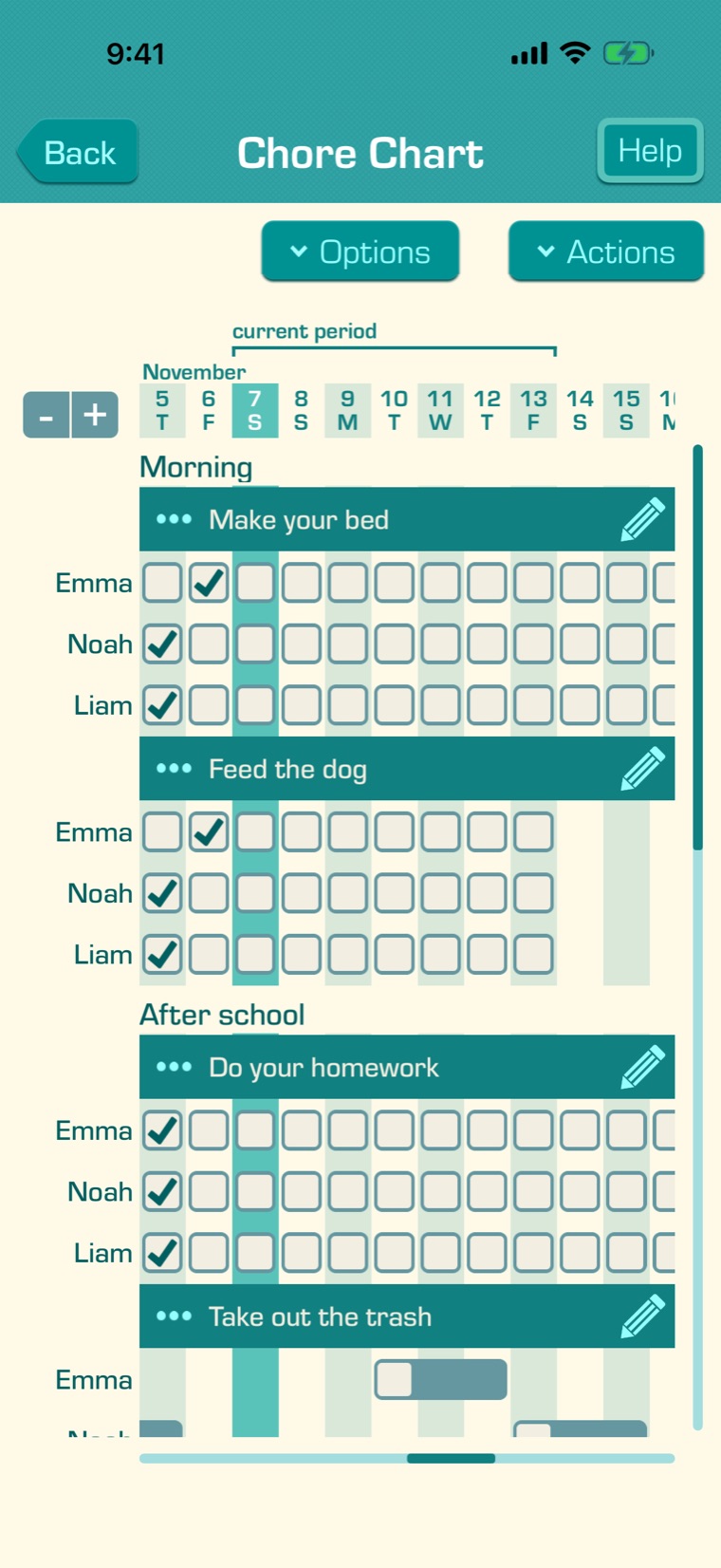
Each chore has a row for each child it’s assigned to, and a column for each day. Today’s column is the dark one. The “current period” bracket shows the days of this allowance period; the next payment is made right after its last day. With Chore Times of Day, chores are grouped under each time of day.
Drag sideways to see past and future days, and up and down to see more chores.
3
Tap a box to check off a chore, or tap it again to uncheck it, on any day. What the boxes mean:
- A check mark: done. Empty: not done yet; on a past day, it was missed.
- A box over several days: a chore with extra days to finish.
- Rotating chores have a box only for the child whose turn it is.
- A faded box: an Up-For-Grabs Chore another child did.
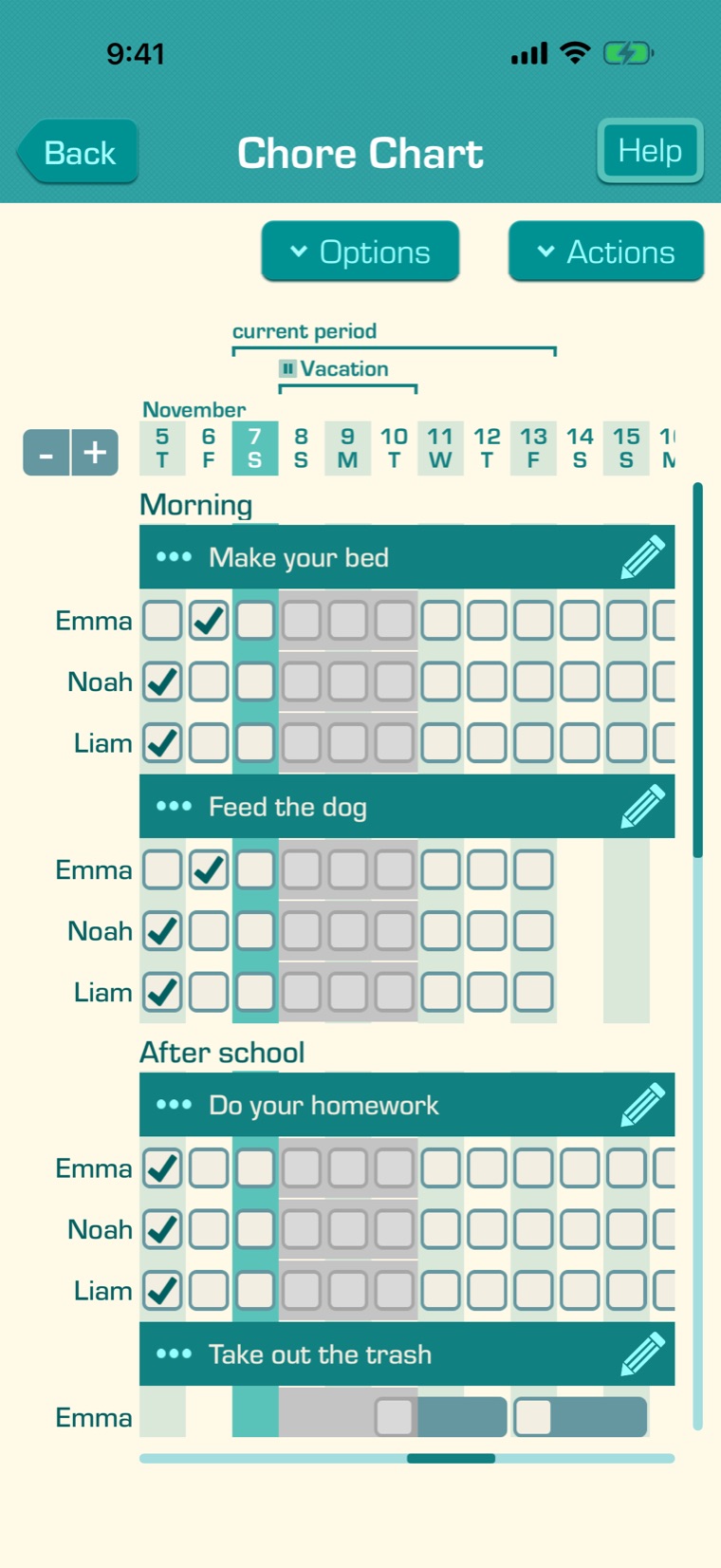
- Grey days: paused chores, with the pause’s name in a bracket at the top.
- A small camera: the chore has a photo. Tap the box to see it.
4
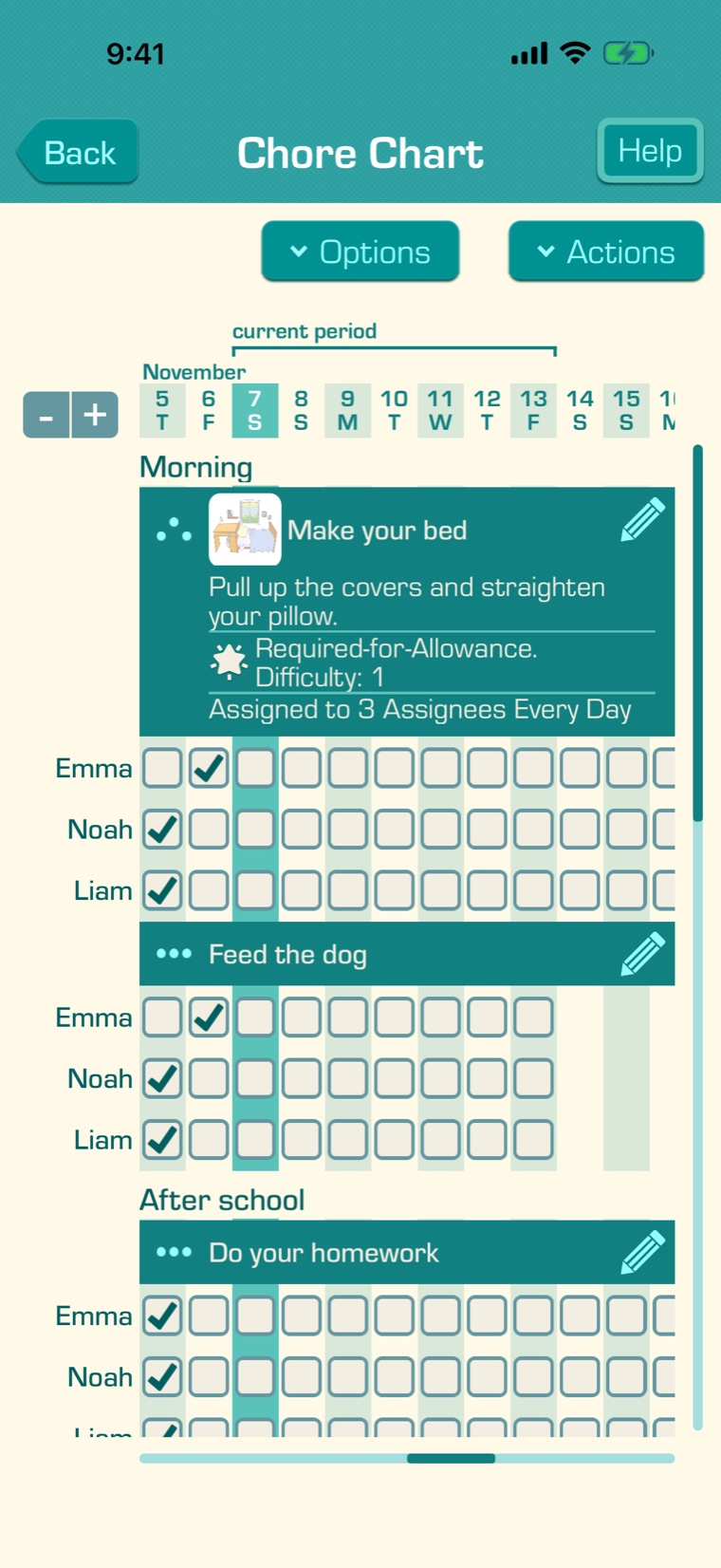
Tap a chore’s dots to see its picture, description, type and schedule.
5
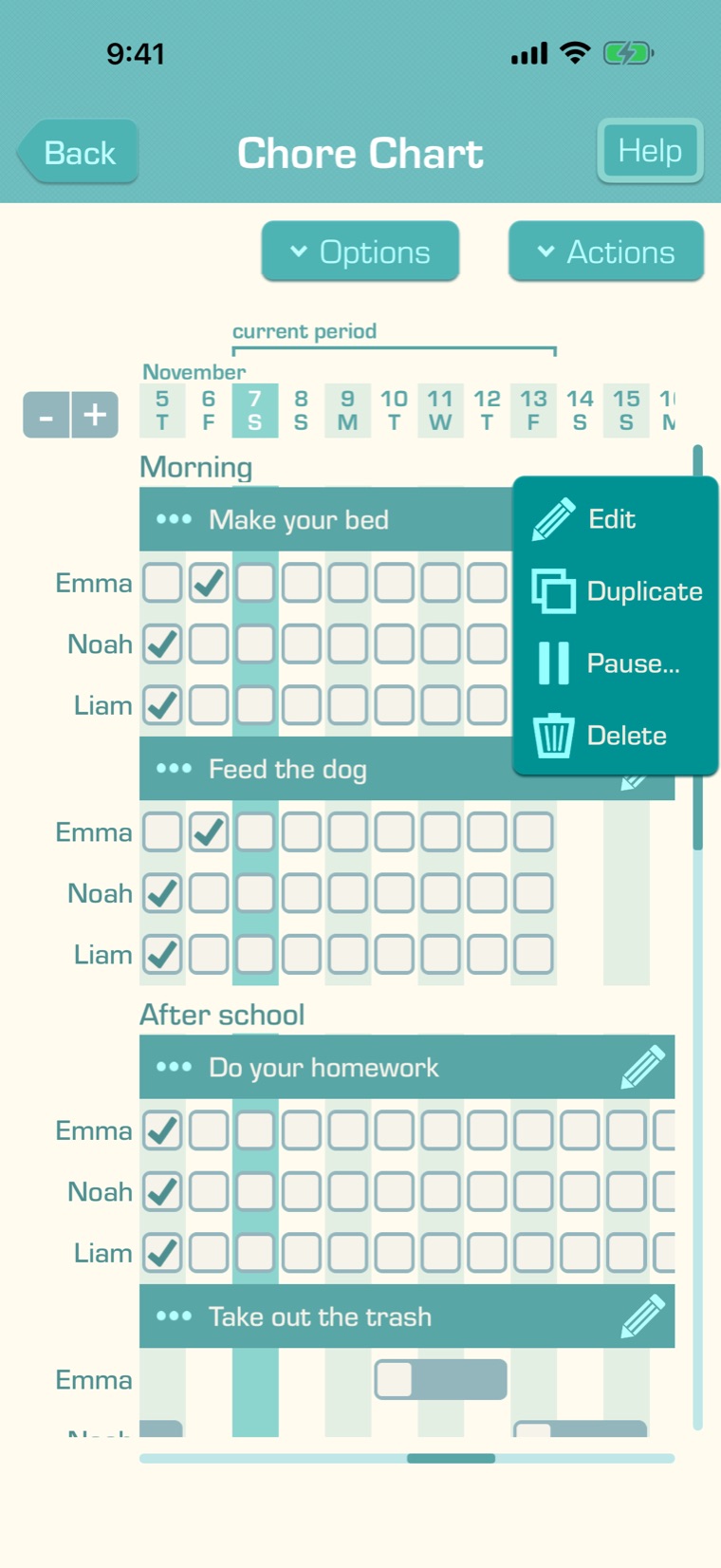
Tap a chore’s pencil to “Edit”, “Duplicate”, “Pause…” or “Delete” it.
6
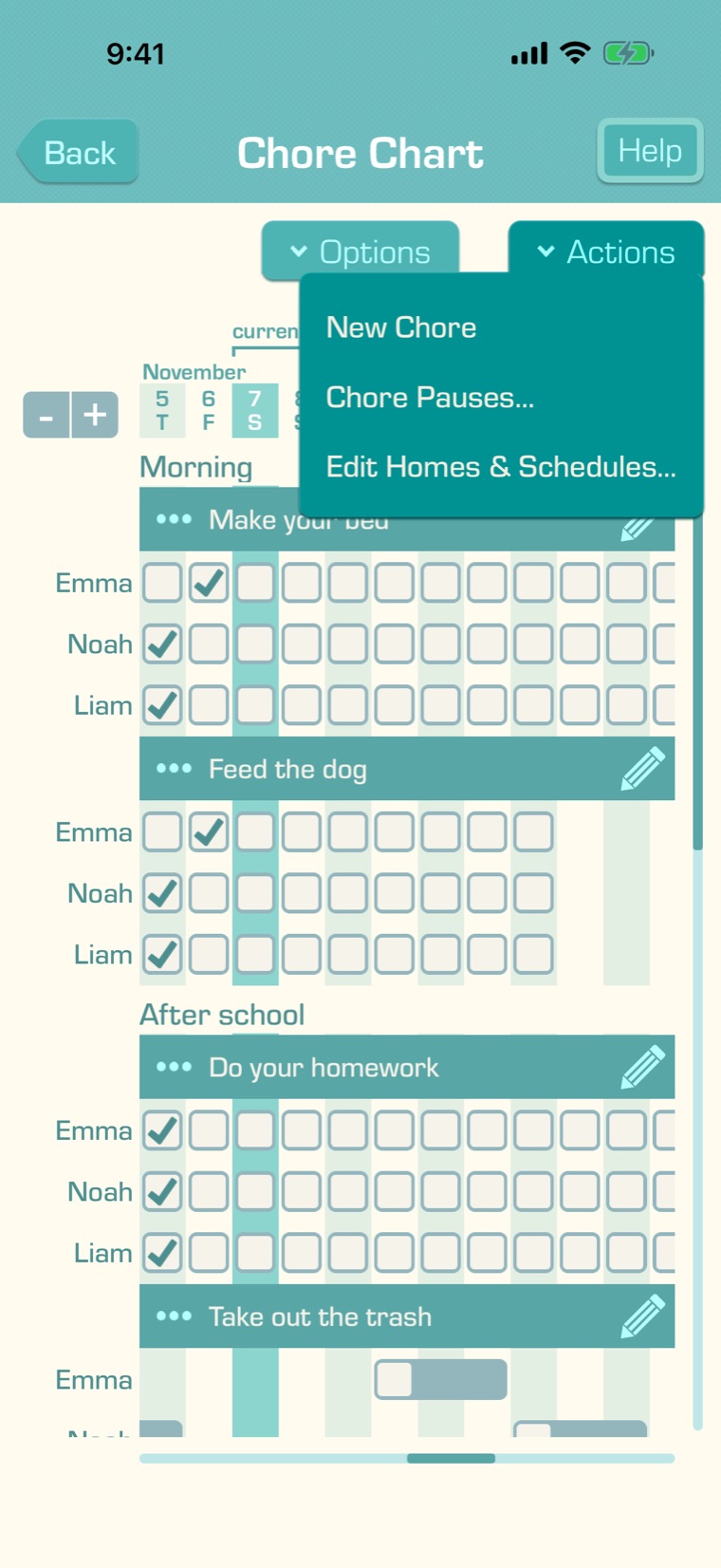
“Actions” makes a “New Chore”, opens “Chore Pauses…”, and, if your children live in more than one home, “Edit Homes & Schedules…”.
7
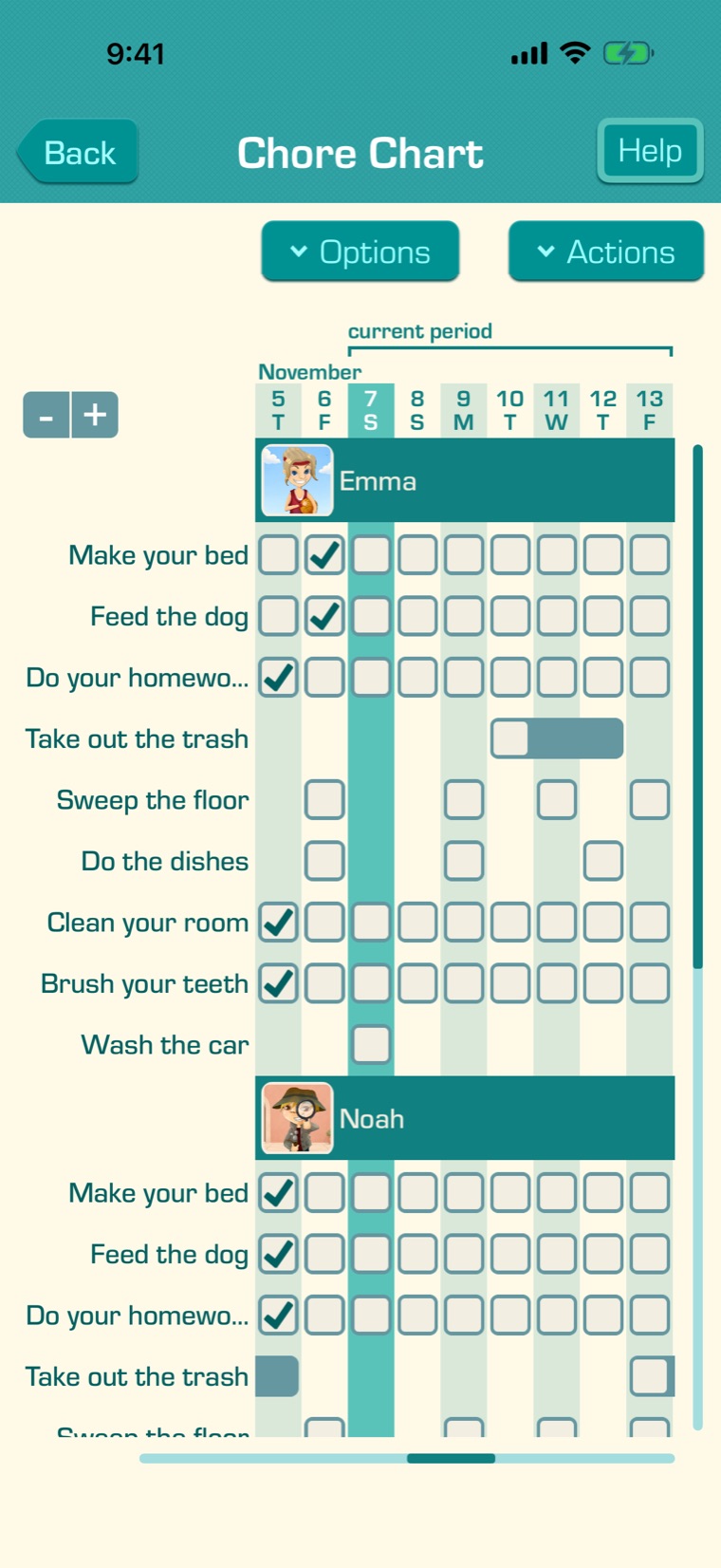
“Options” groups the chart by chore or by child. The − and + buttons make the names column narrower or wider. These choices are kept on this device.
8
The Chore Chart is part of Premium.