Step by Step Guide

Chore Times of Day

Group chores by when they’re done, like Morning, After school and Bed time. A Premium feature.

1

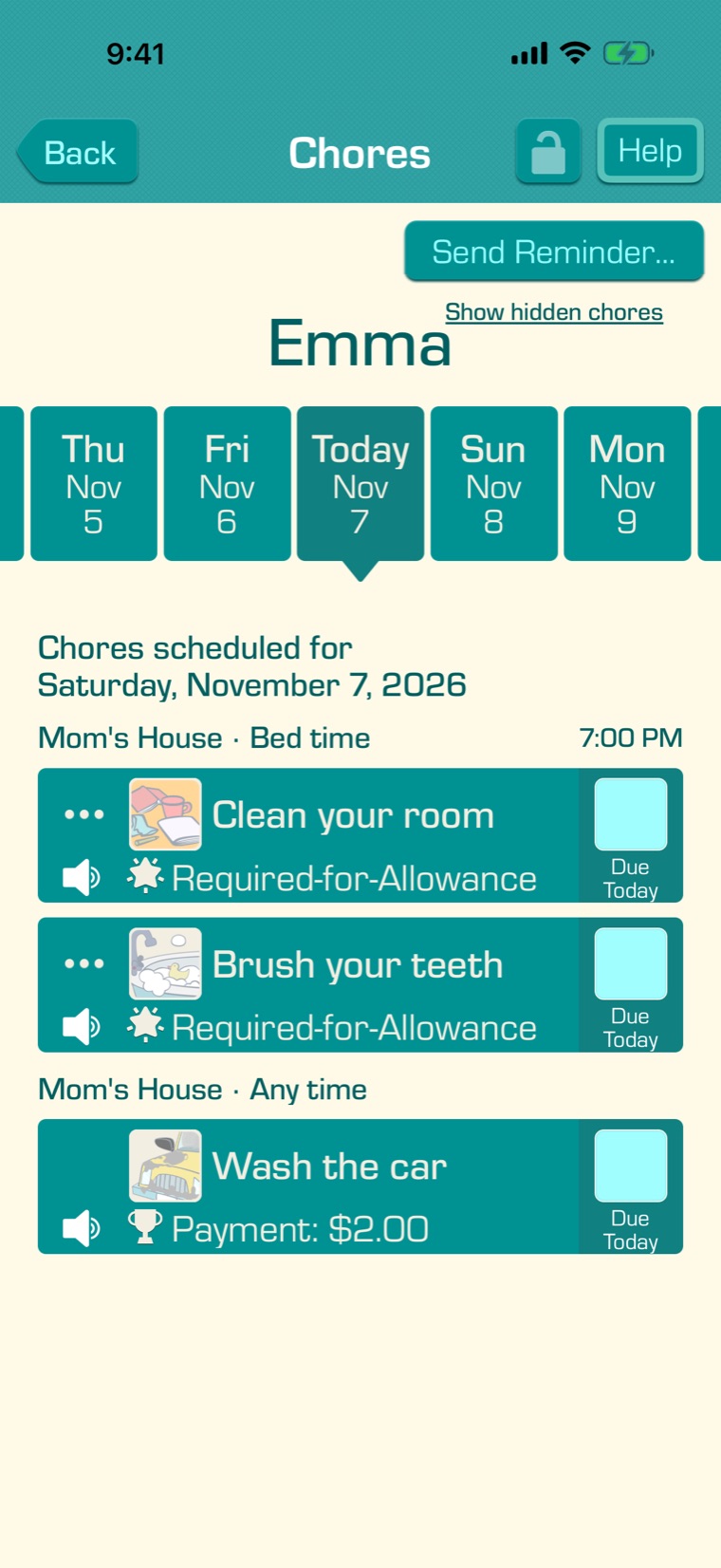
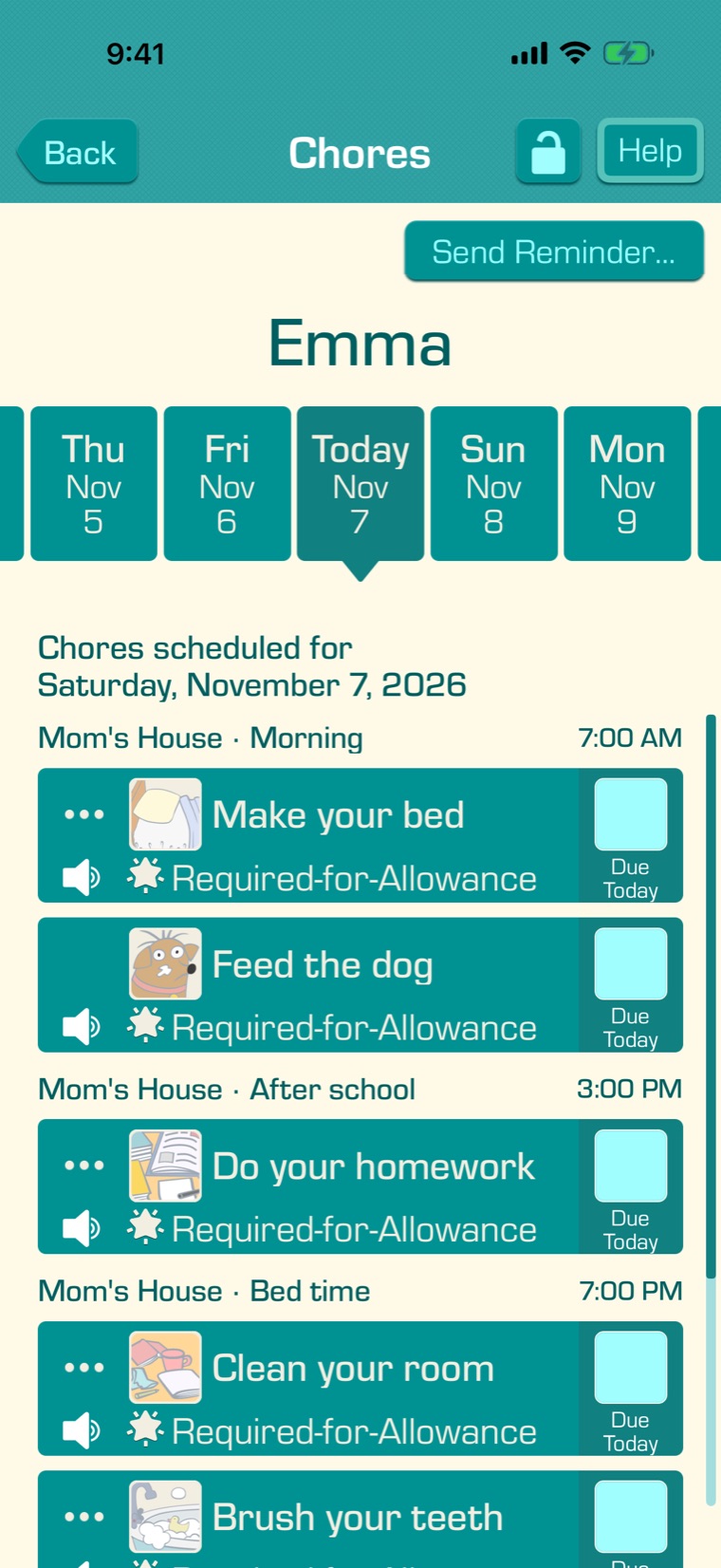
With Premium, you can group chores by when they’re done. On a child’s Chores screen, chores are listed under each time of day, with the time it starts. Chores without a time of day are listed under “Any time”.

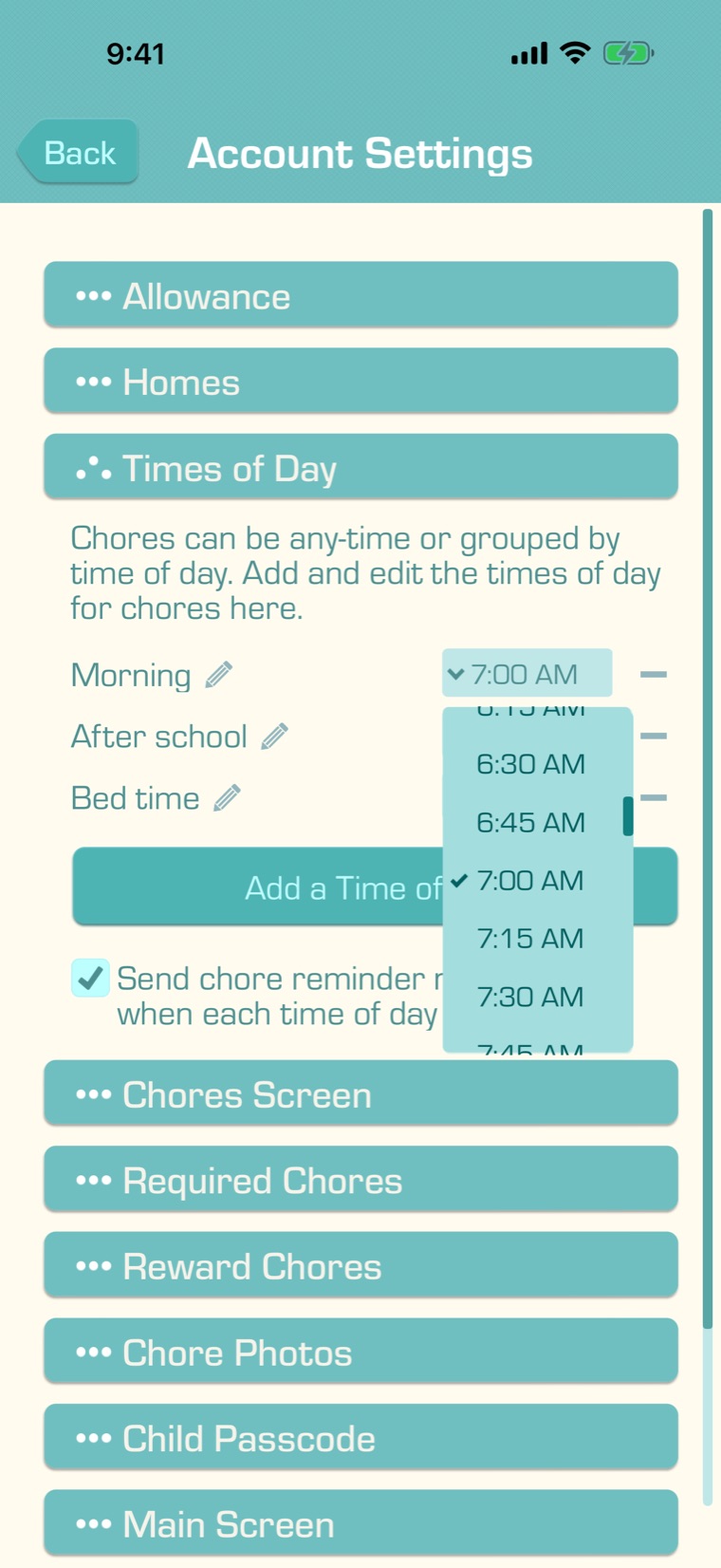
Your account starts with three times of day: Morning (7:00 AM), After school (3:00 PM) and Bed time (7:00 PM). Until you give a chore a time of day, your children’s lists look the same as before.

If your children live in more than one home, each heading also shows the home, like “Mom’s House · Morning” (see Chores for Each Home).
2

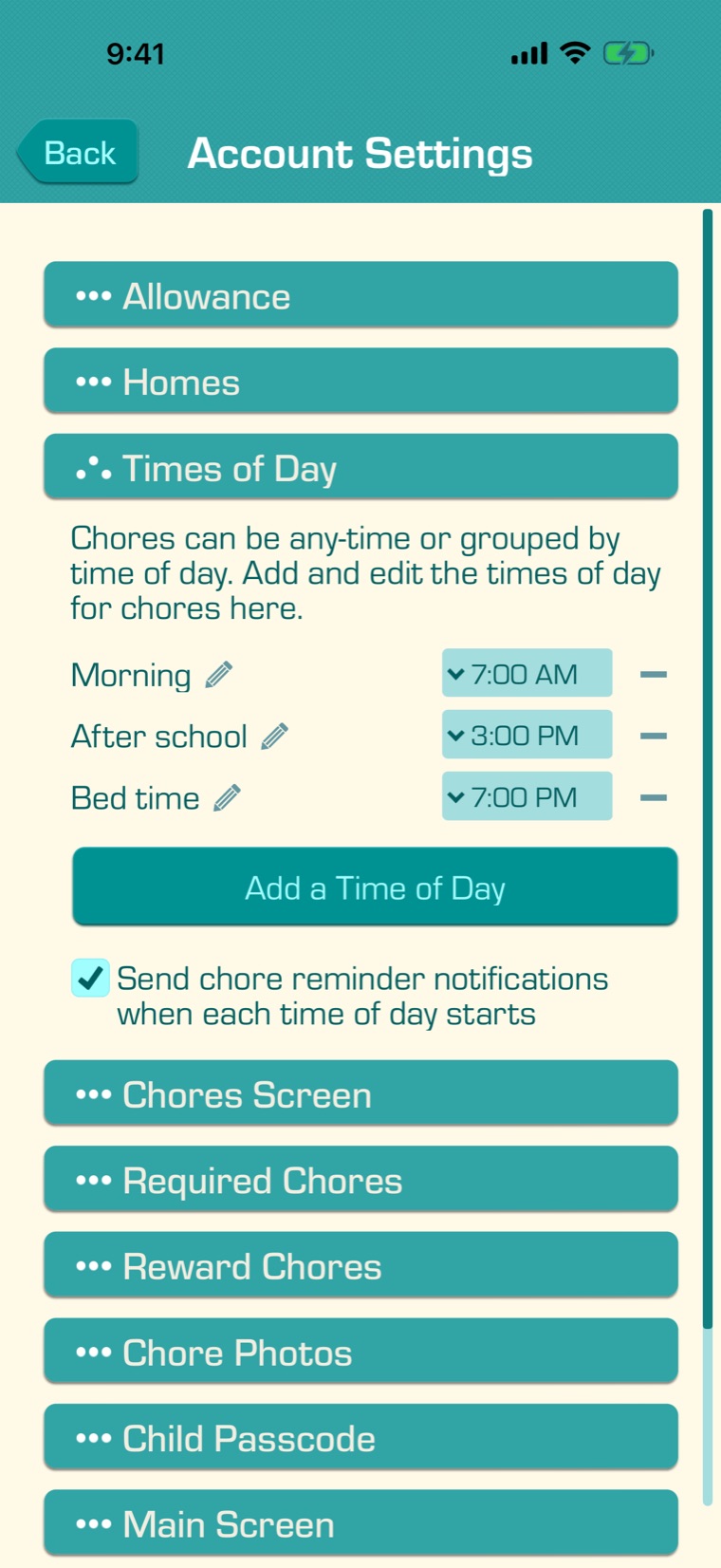
To change your times of day, tap the Settings tab, then “Account Settings”, and open the “Times of Day” section.

Each time of day lasts until the next one starts, and the last one lasts until midnight. Before the first one starts, only Any-time chores can be done. Your account’s time zone sets the times.

3
  • To change a start time, tap it and choose a new time. The list stays sorted by start time.
  • To rename a time of day, tap its name.
  • To add a time of day, like “After dinner”, tap “Add a Time of Day” and enter its name.
  • To delete a time of day, tap its minus button (−). If chores use it, the app asks where to move them: to another time of day, or to “Any time”. A delete can’t be undone.

Changes save right away, for every device on your account.

4

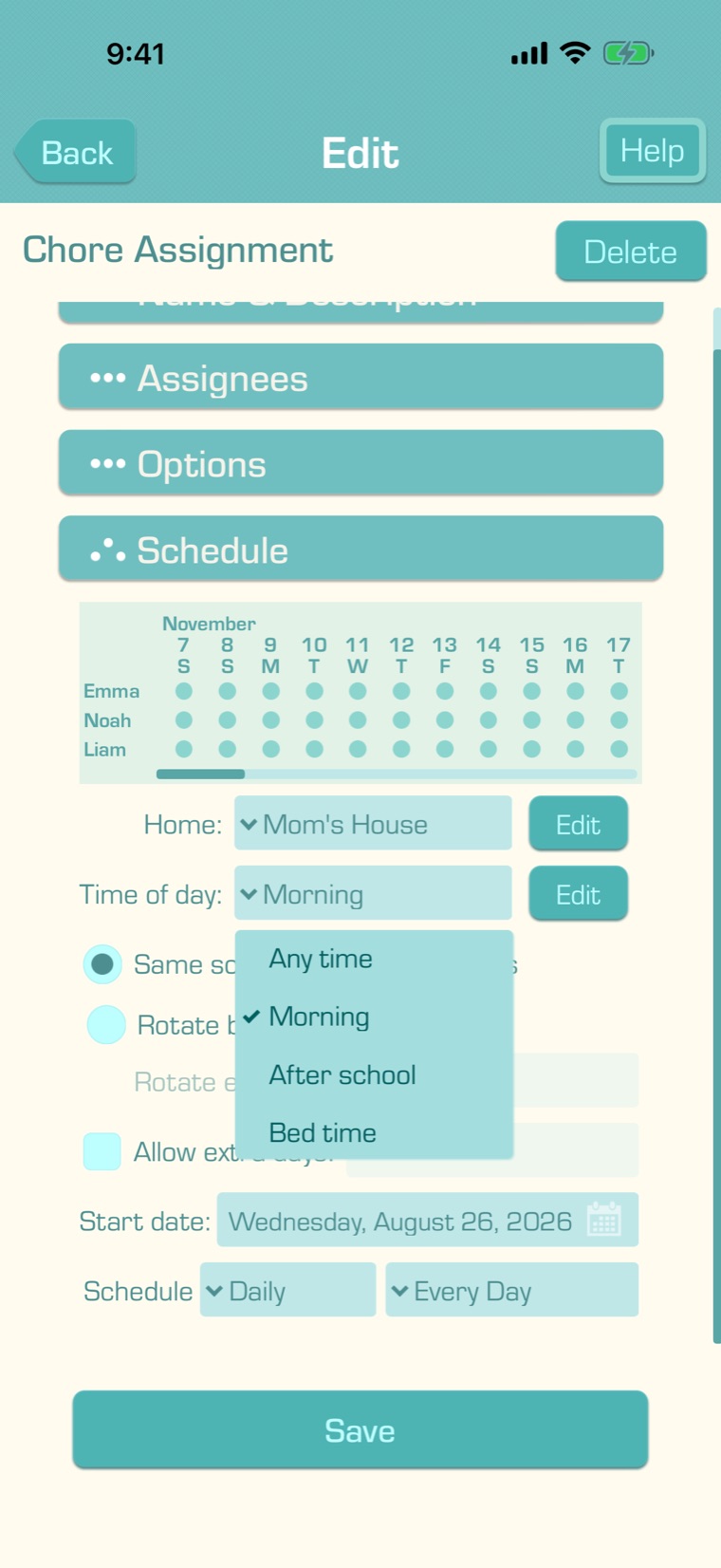
To give a chore a time of day, open the chore: on the main screen, tap “Assign Chores”, tap the chore’s pencil, then “Edit”. For a new chore, tap “Actions”, then “New Chore”.

Open the “Schedule” section and choose the chore’s “Time of day:”, then tap “Save”. The “Edit” button beside it opens your times of day.

A chore has one time of day. For a chore that’s done twice a day, like brushing teeth, make two chores. Rotating chores keep their time of day on every child’s turn.

5

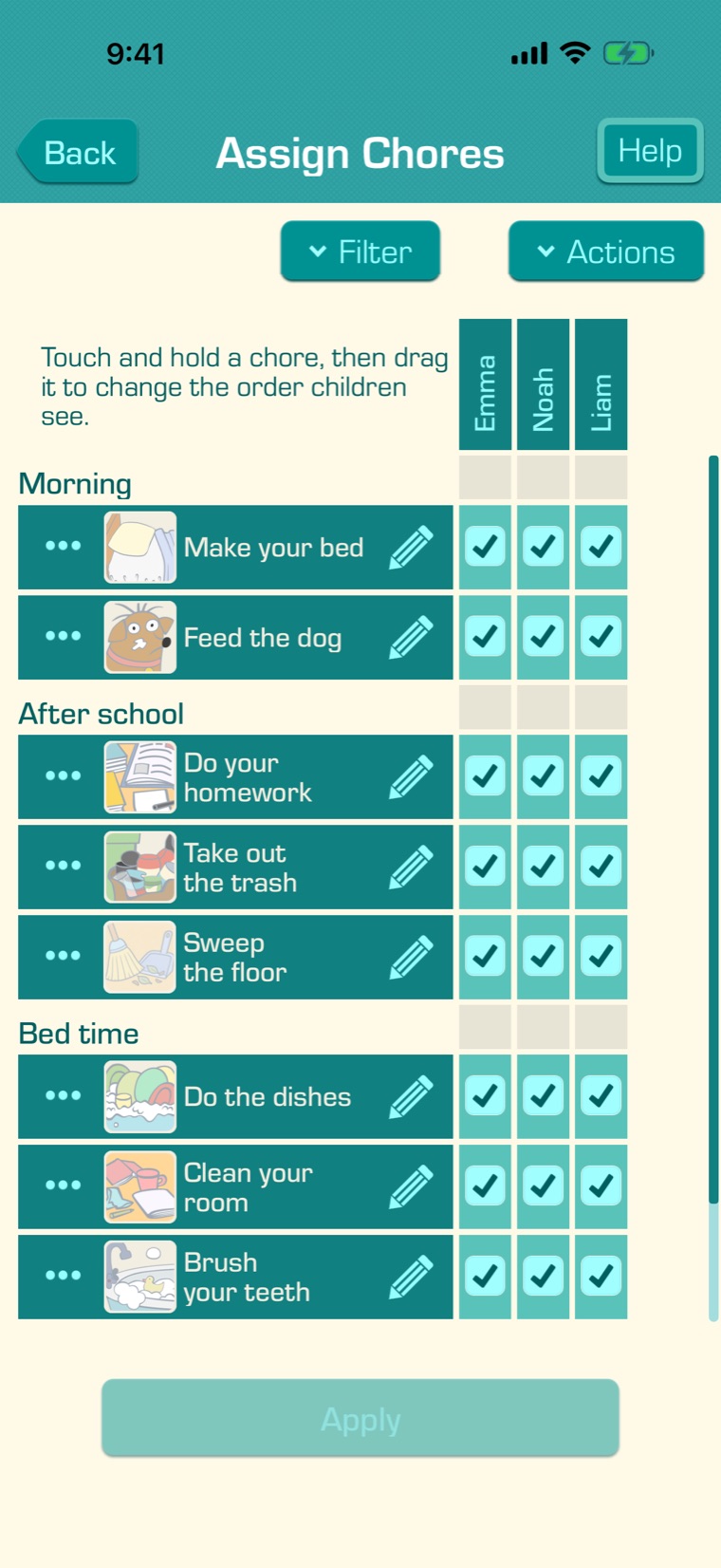
In Assign Chores, chores are listed under each time of day. Touch and hold a chore and drag it to change the order your children see, or drag it under another time of day to move it there. The Chore Chart groups chores the same way when it’s grouped by chore.

6

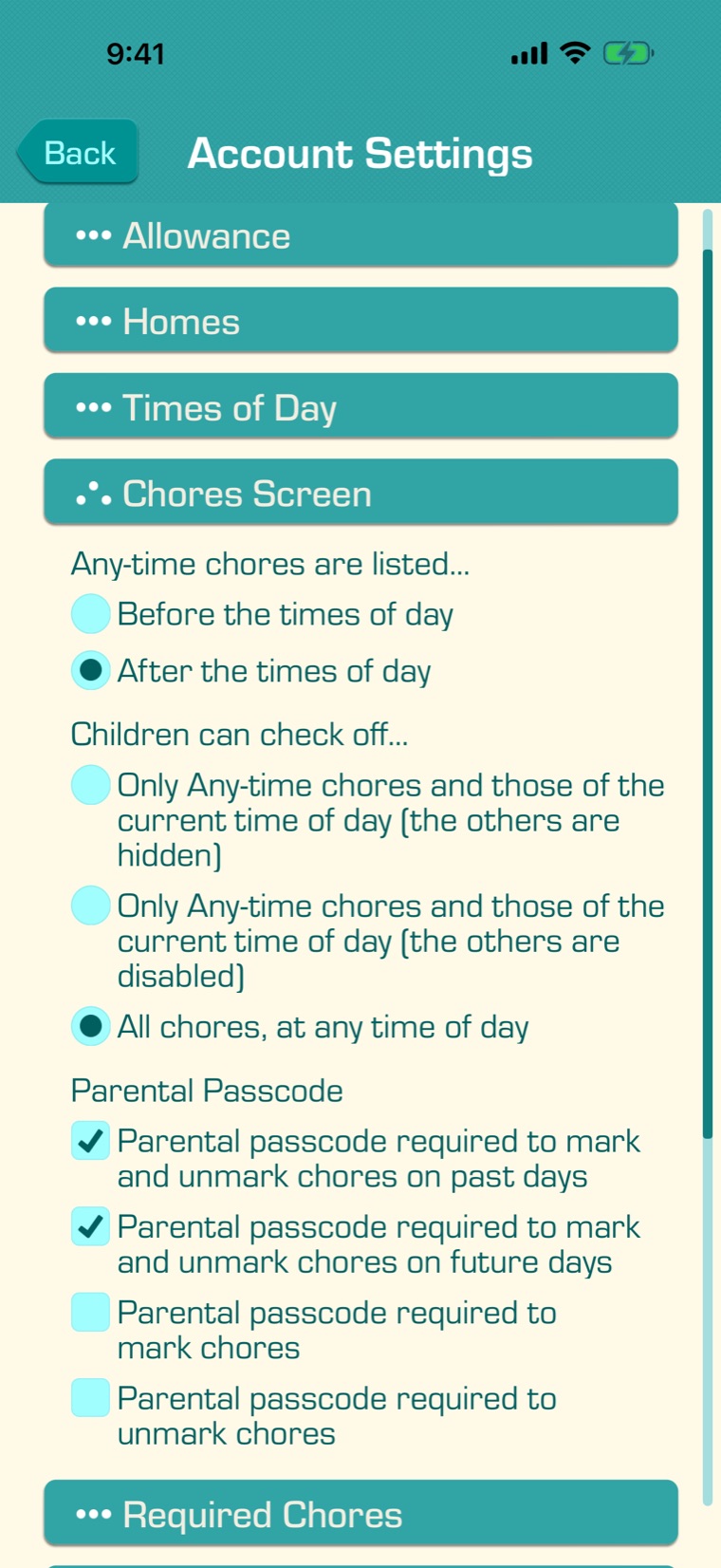
Choose what your children can check off: in the Settings tab, under Account Settings, open the “Chores Screen” section. Under “Children can check off…”:

  • Only Any-time chores and those of the current time of day (the others are hidden): the default. Children see only Any-time chores and the chores of the time of day that’s on now. Earlier and later ones are hidden.
  • …(the others are disabled): children see every time of day, but can check off only Any-time chores and the current one’s.
  • All chores, at any time of day: chores are grouped, and children can check off any of them whenever they like.

“Any-time chores are listed…” puts the Any time chores before or after the times of day.

These limits apply only to today, and only where your child uses the app: their own device, their watch, or a device whose app is locked with the parental passcode. When you’ve unlocked the app, you can still check off any chore, for example in the Chore Chart. If allowance depends on Required Chores, check off a missed chore yourself when it should count.

7

With the first choice, a child sees only the chores they can do now. On a parent’s device, tap “Show hidden chores” to see the rest.

When there’s nothing to do yet, the Chores screen says “No chores to do right now.” and when the next ones start, like “Next chores: Morning at 7:00 AM”. The watch app and widgets follow the same rules.

Required Chore Options apply within each time of day. For example, Morning’s Reward Chores wait only for Morning’s Required Chores.

8

Reminders when each time of day starts: in Account Settings, under Times of Day, “Send chore reminder notifications when each time of day starts” is on unless you turn it off. When a time of day starts, a child who still has chores to do in it gets a reminder like “Morning chores for Emma”.

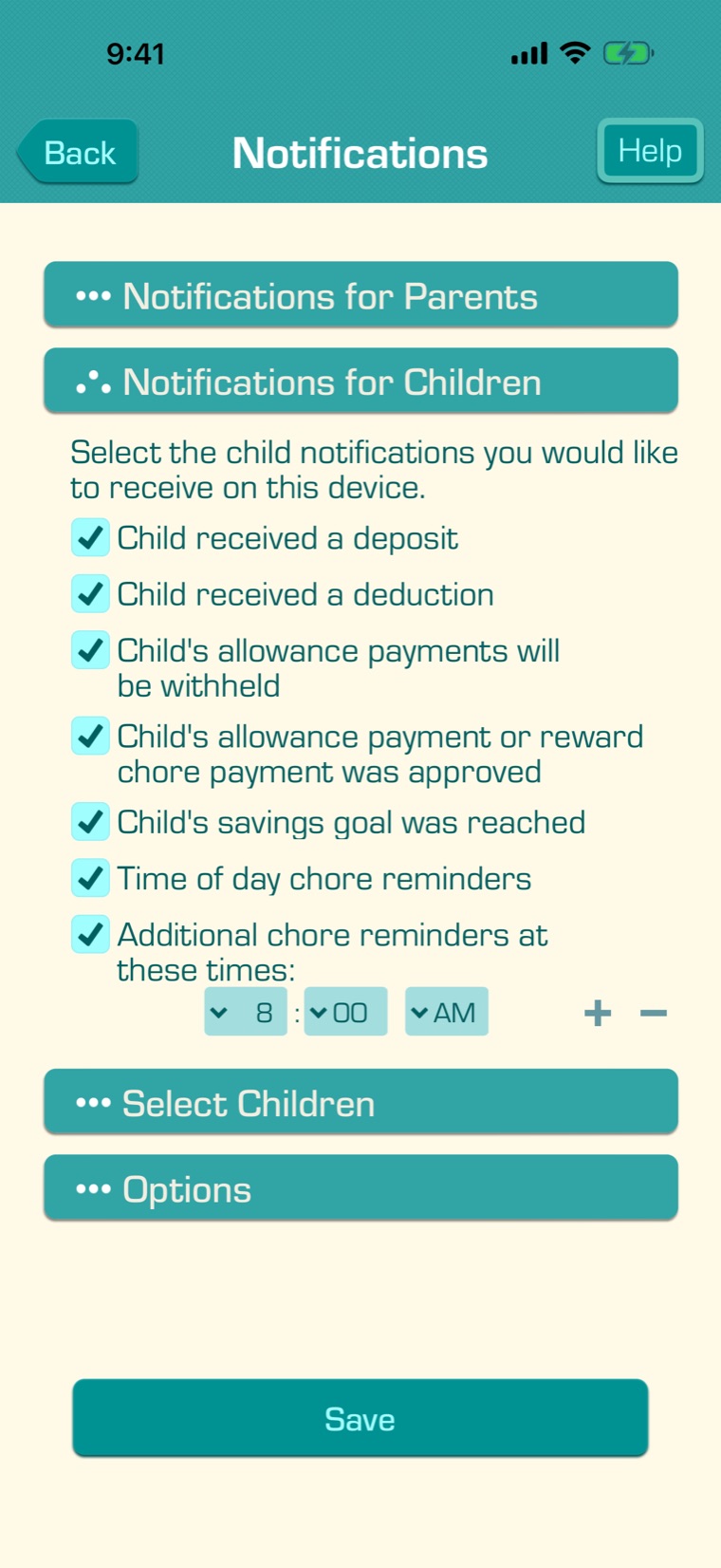
Each device also needs “Time of day chore reminders” turned on in its notification settings, under “Notifications for Children”. See Enabling Child Notifications and Reminders.

9

Times of day are part of Premium. Without Premium, every chore is an Any-time chore. If your Premium subscription ends, chores are no longer grouped and no time-of-day reminders are sent, but your times of day and each chore’s time of day are kept, and come back when you have Premium again.