Step by Step Guide

Chores for Each Home

If your children live in more than one home, tie chores to a home and set when each child is at each home. A Premium feature.

1

If your children live in more than one home, you can name your homes, set when each child is at each home, and tie chores to a home. A chore tied to a home is on a child’s list only while they’re at that home, like feeding the dog at Mom’s house. Chores for “Every home” are on their list wherever they are.

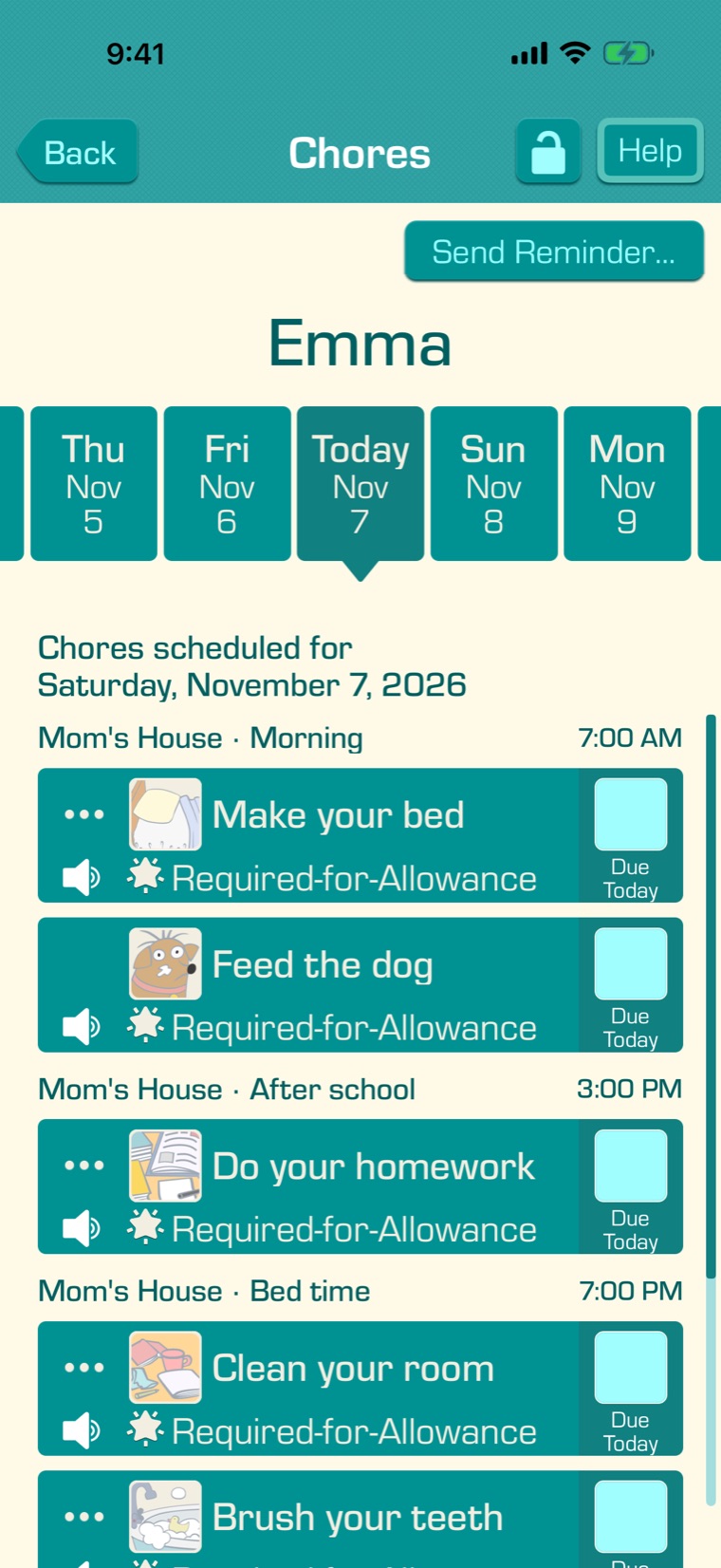
On a child’s Chores screen, the headings show the home they’re at, like “Mom’s House · Morning”. The list updates by itself when they move.
2

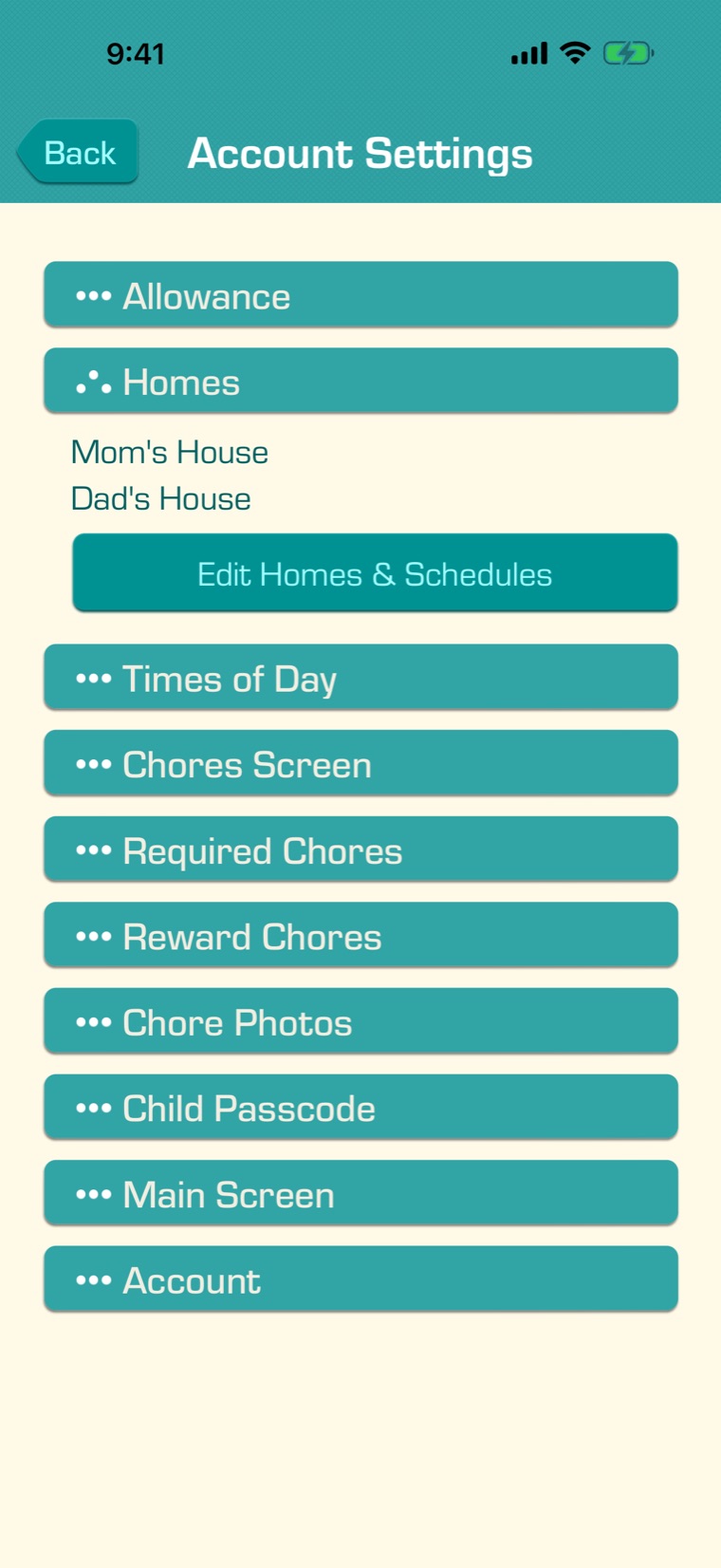
Tap the Settings tab, then “Account Settings”, and open the “Homes” section. Tap “Edit Homes & Schedules”.

3

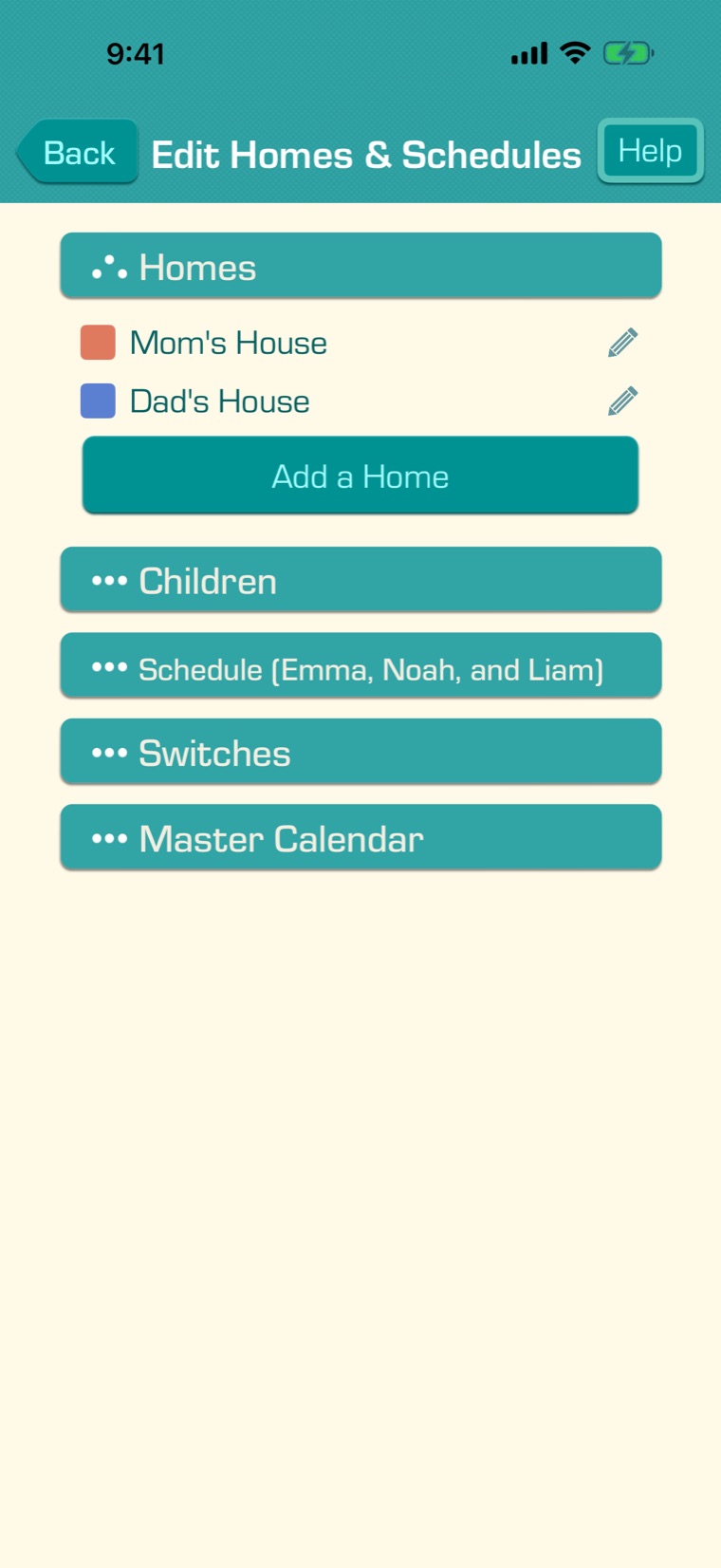
In the “Homes” section, tap “Add a Home”. The first time, the app adds two homes, Home 1 and Home 2.

Tap a home’s pencil to rename it, like “Mom’s House”, to choose its color for the calendars, or to delete it. If you delete a home, its chores change to Every home. You can have up to 8 homes. Changes to homes save right away.

4

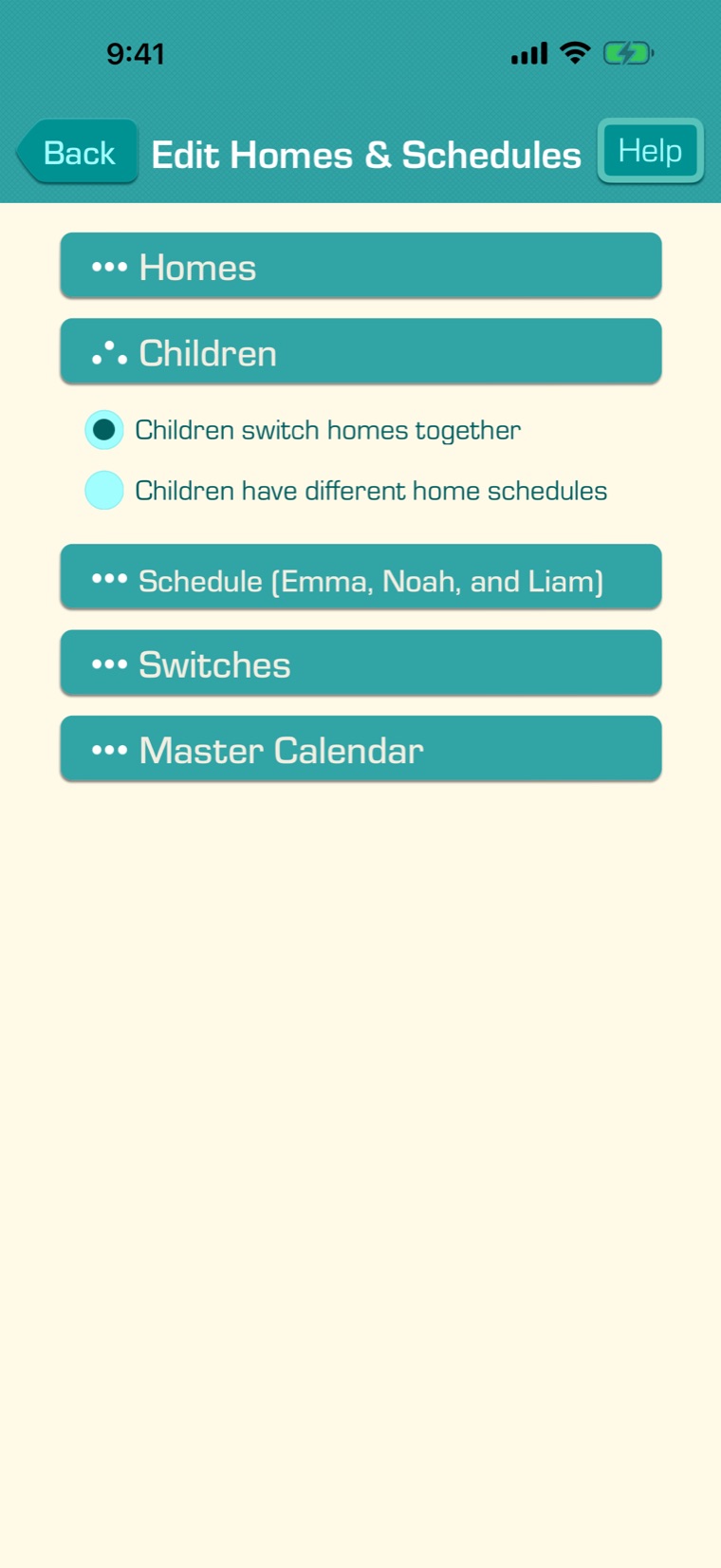
If your children don’t all move between homes together, open “Children” and choose “Children have different home schedules”. Then drag each child to the schedule they follow, or tap a child and then “Move … here”. Otherwise, leave “Children switch homes together”.

5

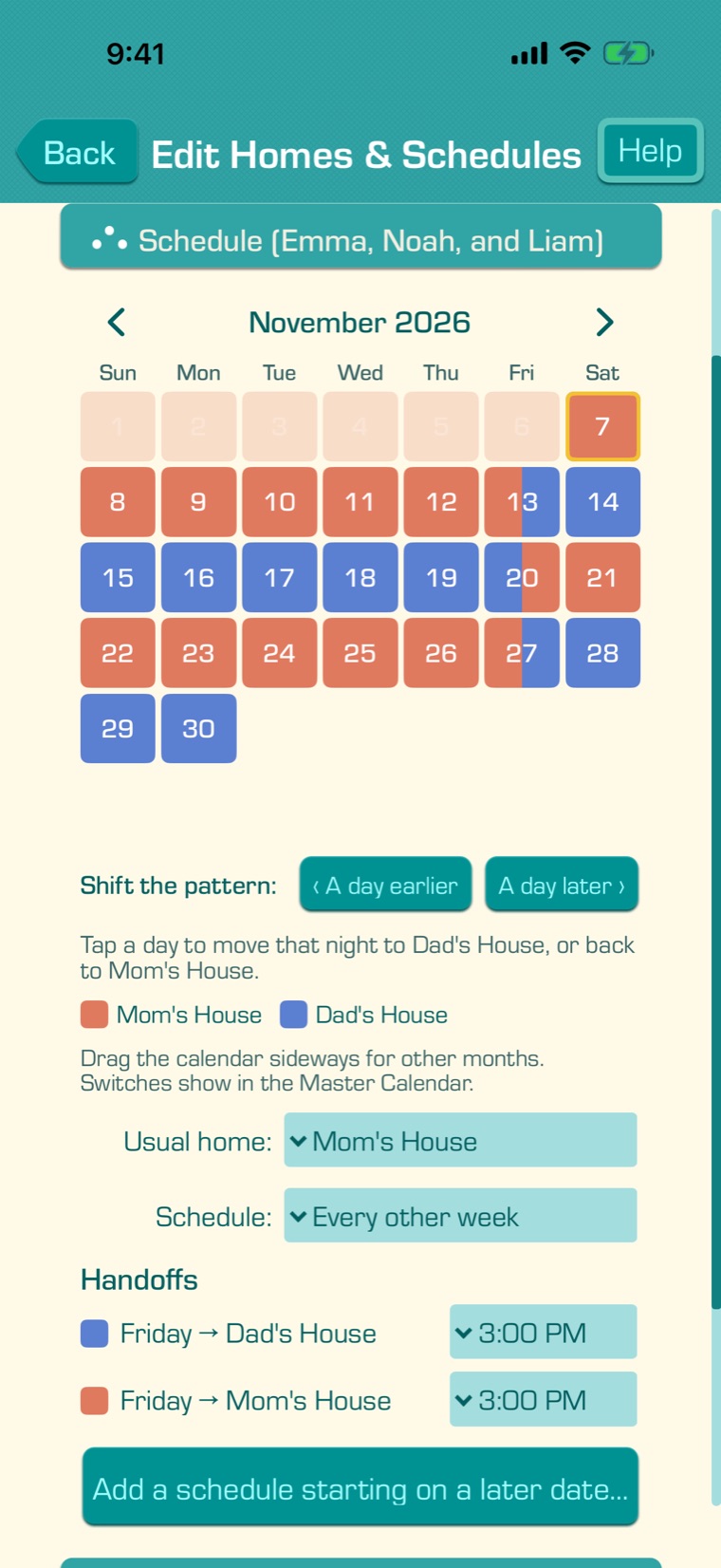
Open the “Schedule” section. Choose the “Usual home:” first, then the “Schedule:”:

  • I switch homes myself: your children are always at their usual home, except for Switches (below).
  • Every other week: a week at each home, changing on Friday at 3:00 PM.
  • 2-2-3 and 2-2-5-5: the common shared-custody patterns, changing at 3:00 PM.
  • Weekends at the other home: every weekend, Friday 6:00 PM to Sunday 6:00 PM.
  • Weekends of the month: the weekends you choose, like the 1st, 3rd and 5th.
  • Custom: a pattern that repeats every 1 to 4 weeks.

The calendar shows each night in the color of the home your children sleep at. A day with a handoff is split in two colors. Drag the calendar sideways to see other months.

6

To fine-tune the schedule:

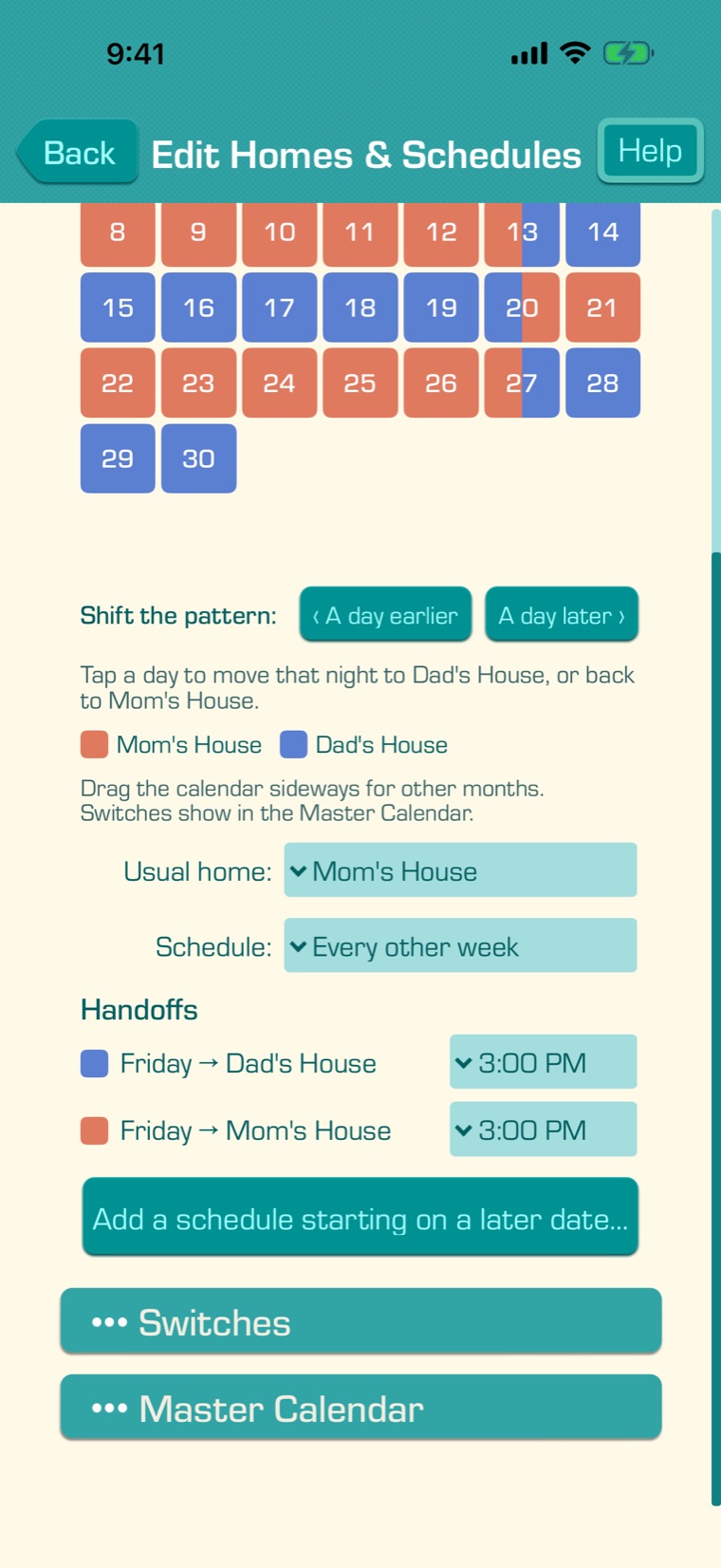
  • Change each handoff’s time in the “Handoffs” list.
  • Use “Shift the pattern:” to move it a day earlier or later.
  • Tap a day in the calendar to move that night to the other home. This changes that night in every repeat of the pattern.
  • If your schedule will change, tap “Add a schedule starting on a later date…” and set the new schedule and the day it starts.

Tap “Save” at the bottom of the screen. Changes count from today; past days stay as they were.

7

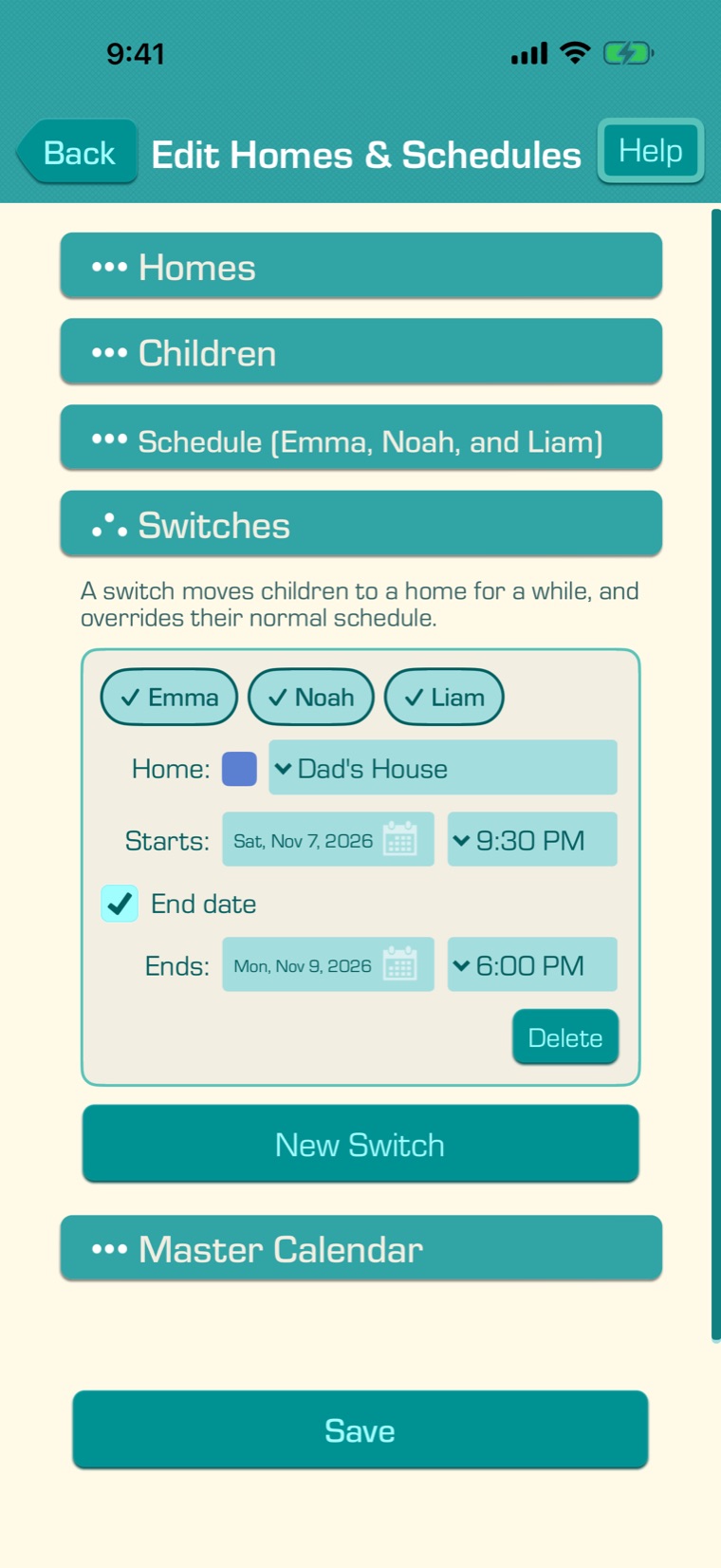
For a one-time change, like a holiday at Grandma’s, use a Switch. Open “Switches” and tap “New Switch”. Choose the children, the home, when it starts and when it ends, then tap “Save”. Untick “End date” to keep the children there until you change it.

A Switch overrides the schedule. Once it has started, only its end can change, and “Switch Back” ends it now. From the Chore Chart or Assign Chores, “Actions”, then “Edit Homes & Schedules…” opens the Switches.

8

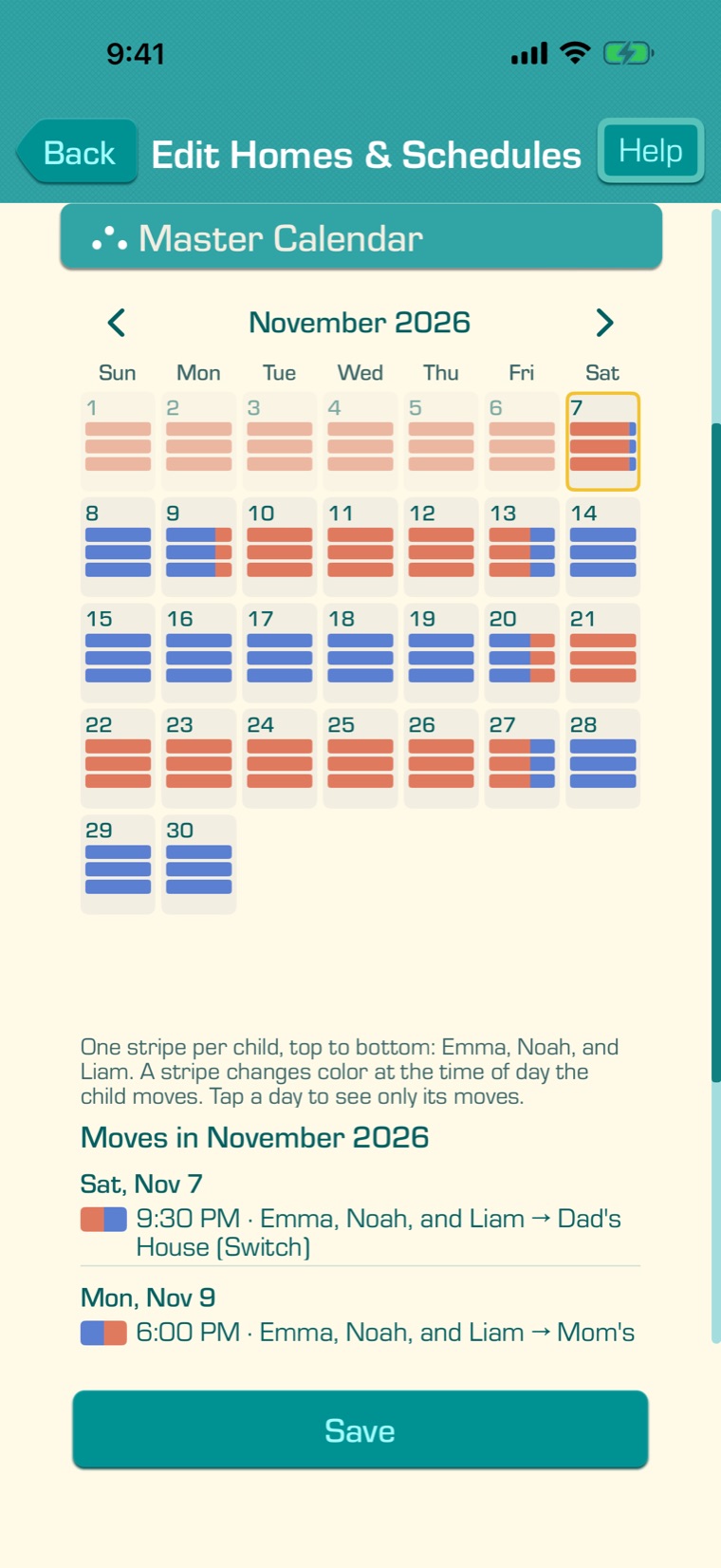
The “Master Calendar” shows everyone, Switches included: one stripe per child for each day, in the color of their home. Below it is a list of every move that month. Tap a day to see only its moves.

9

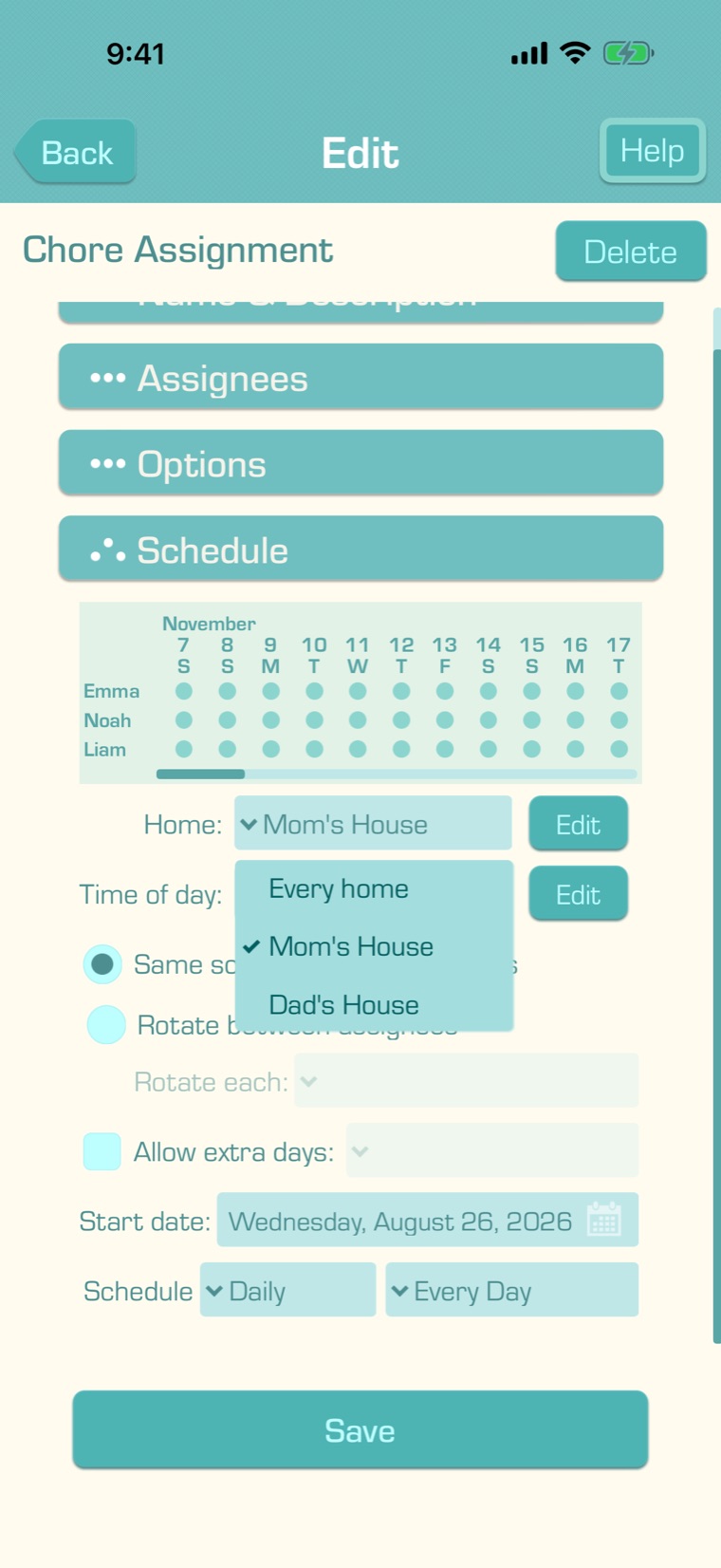
To tie a chore to a home, open the chore (Assign Chores, the chore’s pencil, then “Edit”), open “Schedule”, and choose its “Home:”. “Every home” is the default. Tap “Save”.

Homes change nothing until a chore is tied to one.

10

How chores follow your children:

  • A chore for Every home is assigned wherever your child is.
  • A chore tied to a home with a time of day is your child’s if they’re at that home when its time of day starts.
  • An Any-time chore tied to a home is on your child’s list if they’re at that home some time that day. If they leave for the rest of the day, an undone one is removed and doesn’t count against their allowance. A chore done before they leave stays done.
  • A rotating chore tied to a home skips a child who’s at the other home, and the next child at that home takes the turn.
  • “Allow extra days” ends on a day your child isn’t at the chore’s home.
  • With the default “Children can check off…” choice (Account Settings, Chores Screen), a child sees and checks off only chores for the home they’re at.

Homes are part of Premium. If your Premium subscription ends, every chore is assigned wherever your children are, but your homes, schedules and chores’ homes are kept, and come back when you have Premium again.