Step by Step Guide

Child Passcodes and Chore Photos

Let each child protect their own screens from brothers and sisters, and ask for a photo of each finished chore. Premium features.

1

A child passcode is a 4-digit code for one child. It protects that child’s screens from their brothers and sisters on a shared device.

Child passcodes work on a device that asks for the parental passcode: in the Settings tab, under Device Settings, “Require the Parental Passcode On This Device” is on, and the app is locked. Then a child’s passcode opens only that child’s protected screens, and the parental passcode opens everything.
2

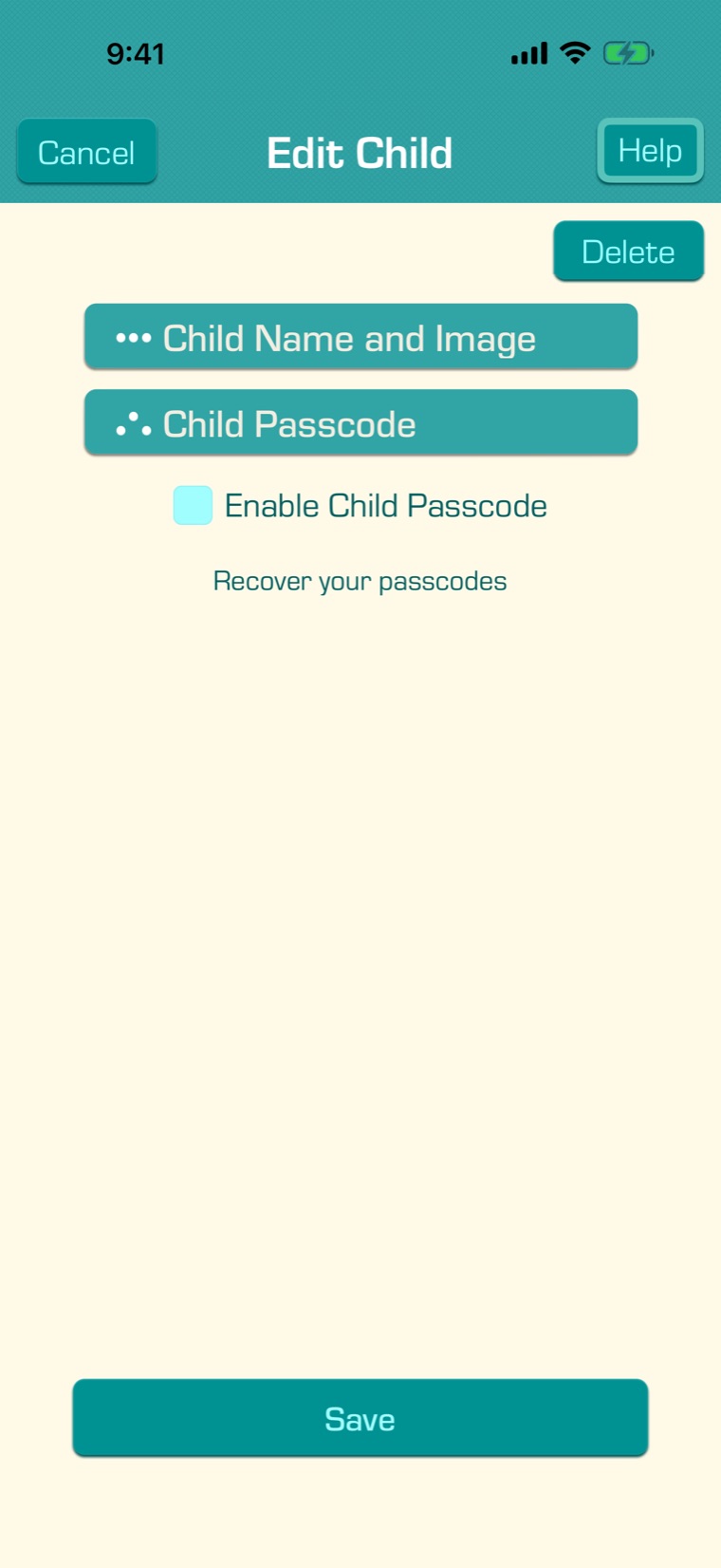
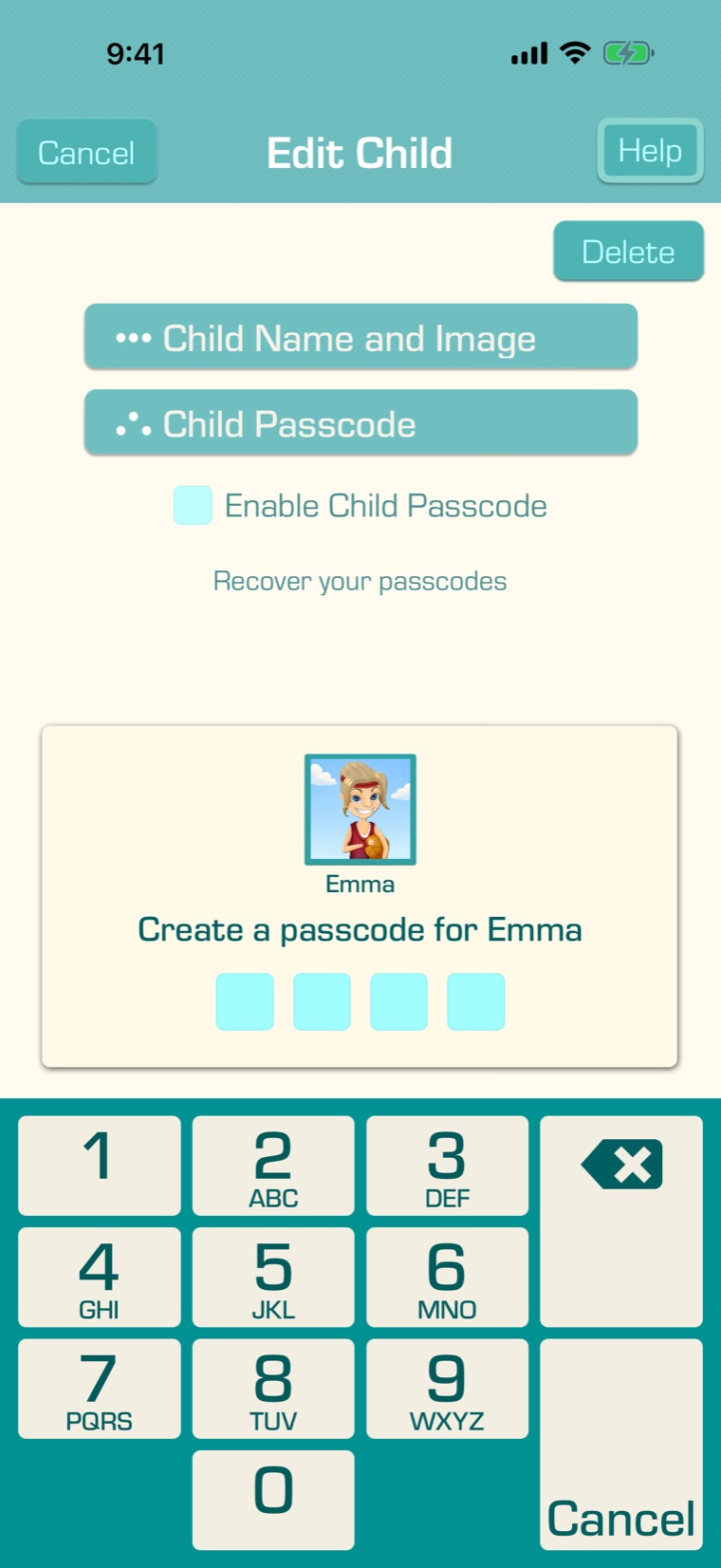
To give your child a passcode, tap your child on the main screen, then “Edit Child”. Open “Child Passcode” and tick “Enable Child Passcode”.

3

Enter four digits for your child, then enter them again. Then tap “Save” in Edit Child. To remove the passcode later, untick “Enable Child Passcode” and tap “Save”.

4

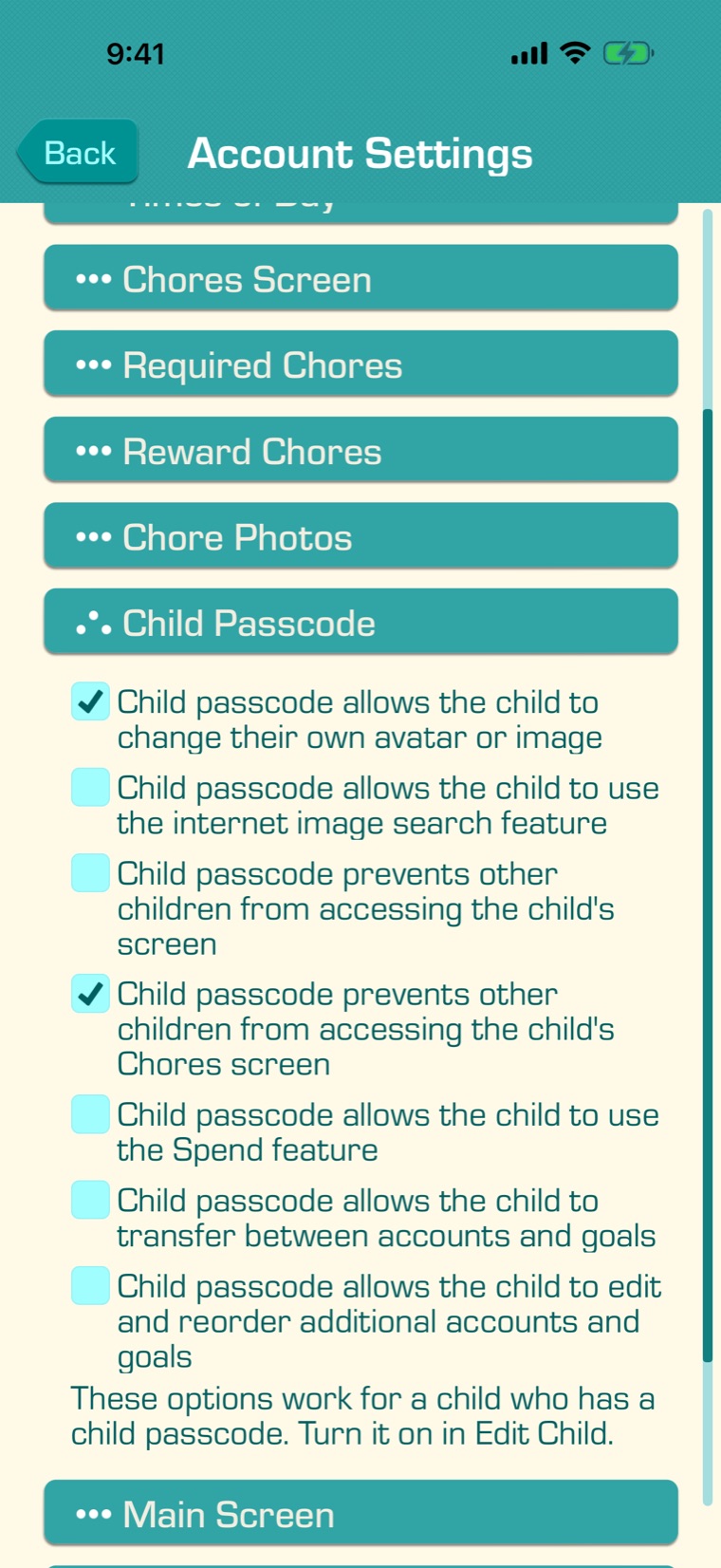
Choose what child passcodes do: in the Settings tab, under Account Settings, open “Child Passcode”. A child passcode can let the child change their own avatar or picture, use the internet image search, spend from their savings, and move money between or rearrange their accounts and goals. It can also keep other children out of the child’s screen or their Chores screen.

5

When your child opens a protected screen, the app asks for “either passcode”: the child’s or the parent’s. A child’s passcode opens just that screen, and the next one asks again. A protected screen closes after 5 minutes without a touch.

On a device with Face ID or Touch ID, the app can offer to use it for one passcode on that device: the parent’s or one child’s. If someone forgets a passcode, tap “Recover your passcodes” in the passcode box.

6

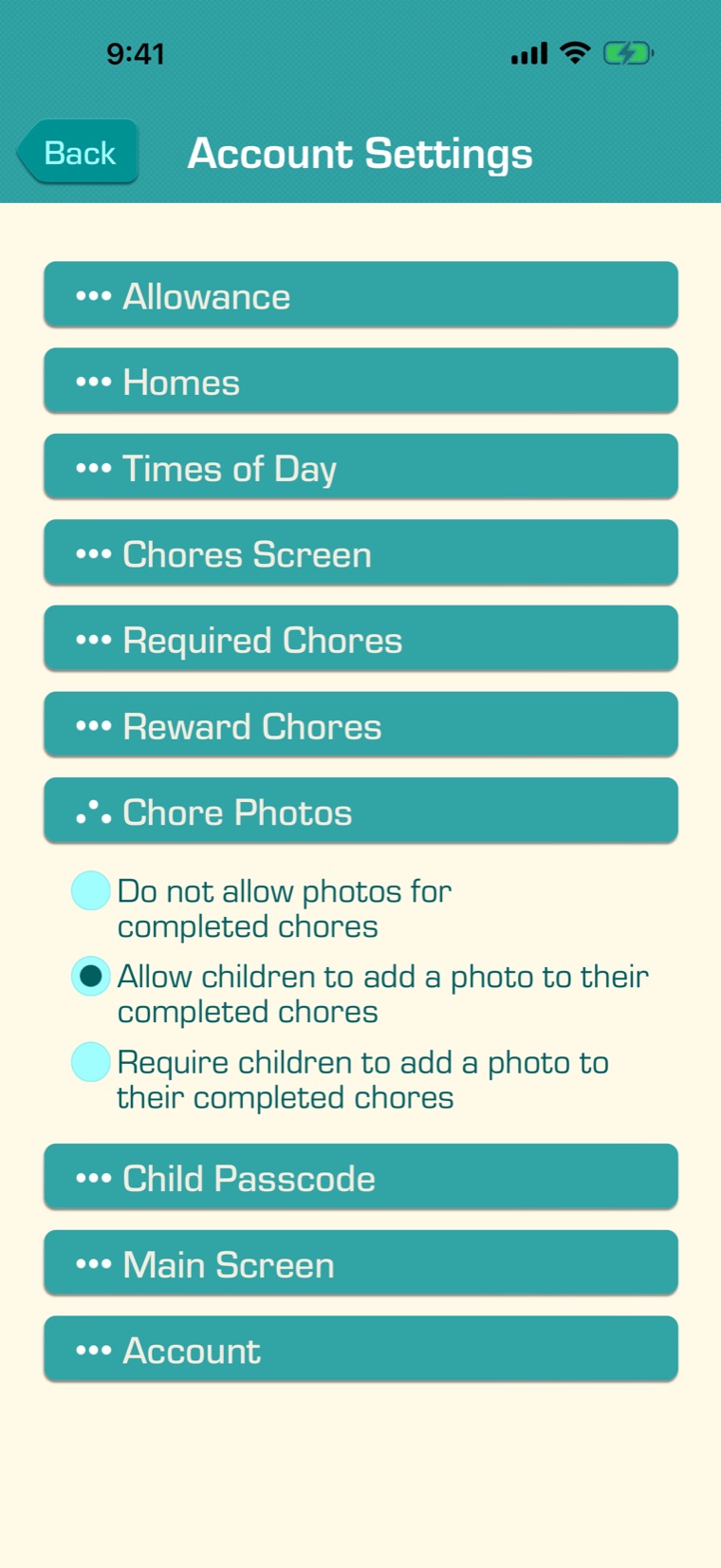
Chore photos: in Account Settings, open “Chore Photos” and choose:

  • Do not allow photos for completed chores (the default).
  • Allow children to add a photo to their completed chores.
  • Require children to add a photo to their completed chores.

This applies to every chore.

7

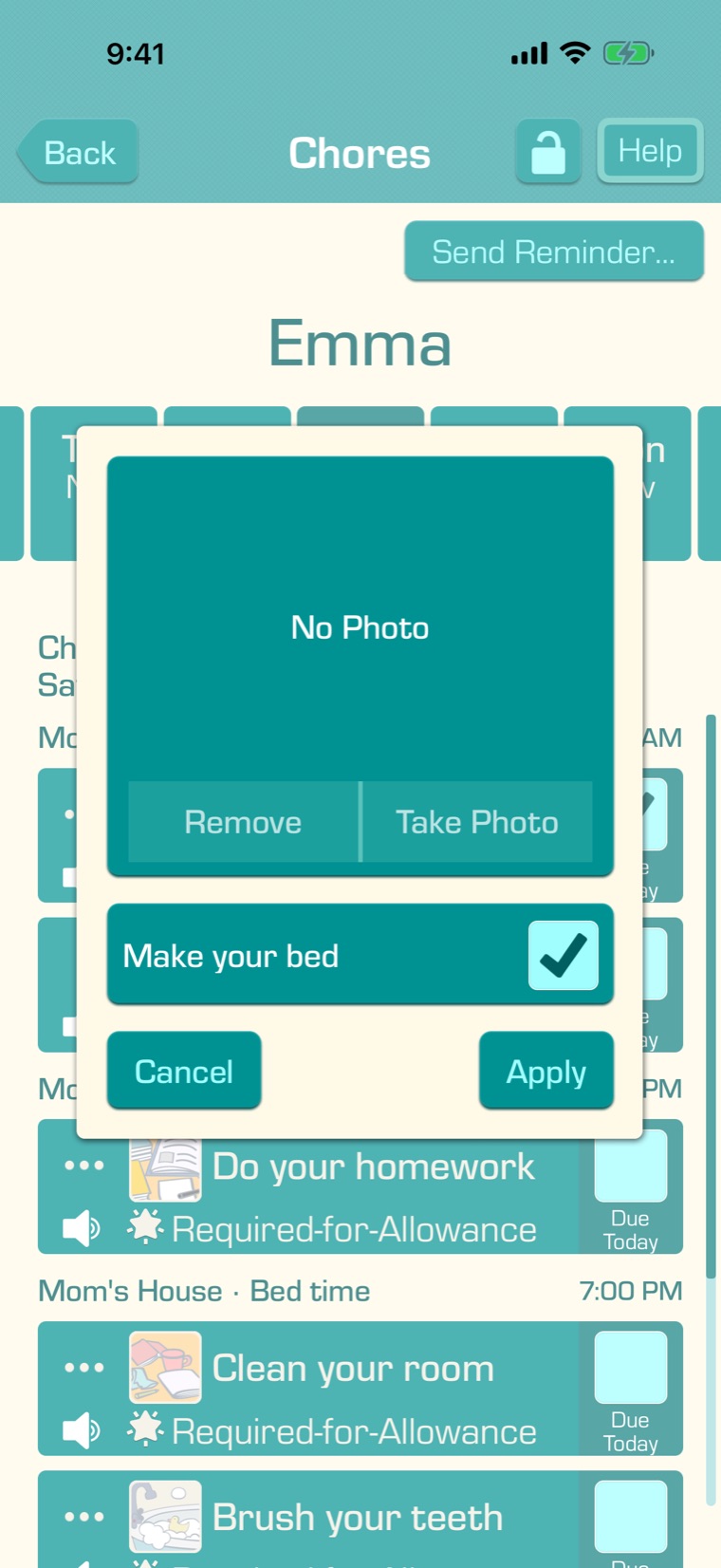
With photos on, checking off a chore opens this box. Your child taps “Take Photo” to take a picture with the camera, then “Apply”. With “Require…”, a chore can’t be marked done without a photo on a device with a camera.

8

Parents see a small camera on chores with a photo, on the Chore Chart and on the child’s Chores screen. Tap the chore to see the photo, and tap the photo to see it full screen. “Remove” deletes it.

On a watch or a widget, a chore that needs a photo is checked off in the app instead.