Step by Step Guide

Watch Apps and Widgets

Kids can see and check off their chores on an Apple Watch or Wear OS watch, and on widgets. Free in version 5.1.

1

Children can see their chores and check them off on an Apple Watch or a Wear OS watch, without a phone. The watch apps, widgets, Siri and Shortcuts are free in version 5.1 and later: update the app on your devices first.

Apple Watch (watchOS 10 or later): on the iPhone, open the Watch app and install Chores & Allowance Bot under “Available Apps”, or install it from the App Store on the watch. Wear OS (Wear OS 3 or later): install it from the Play Store on the watch.
2

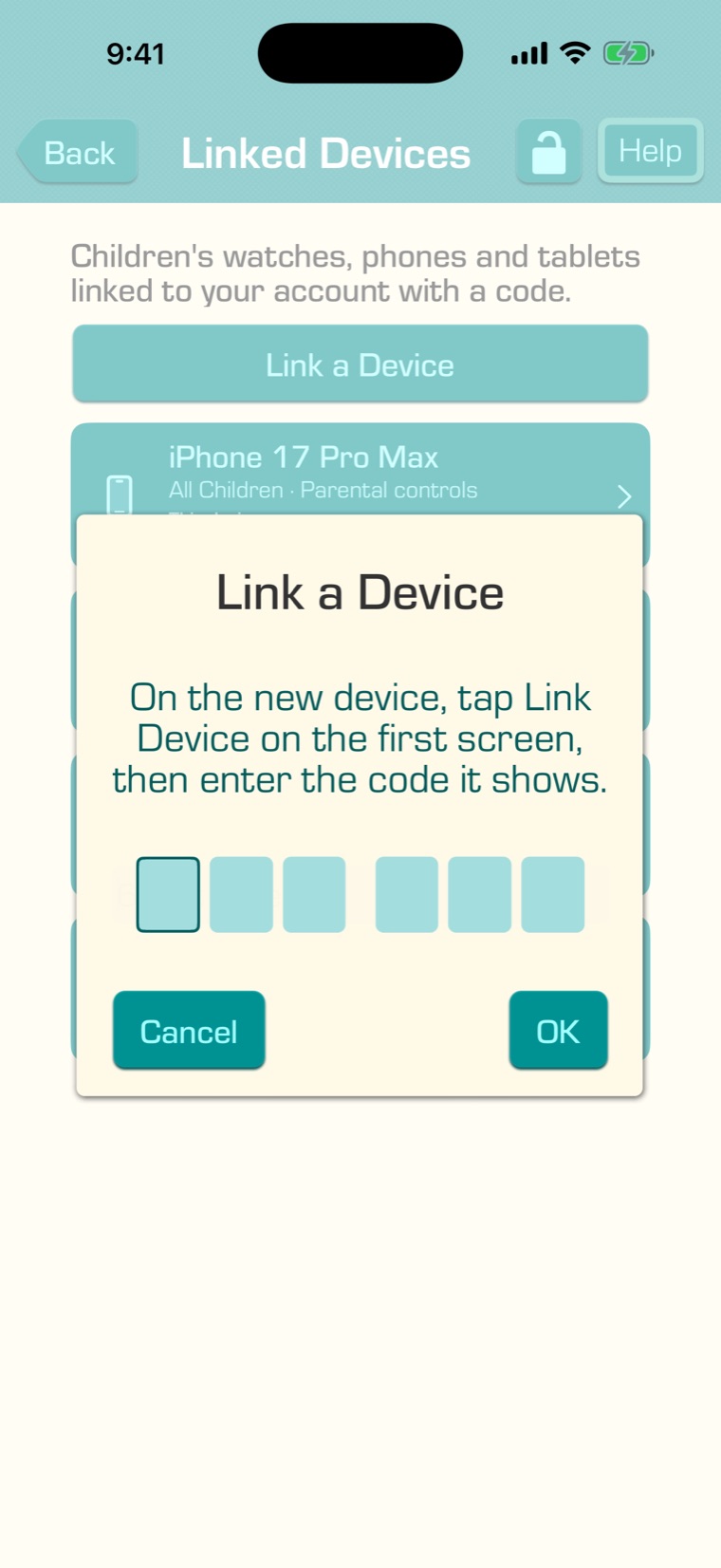
Open the app on the watch. It shows “Link Device” and a 6-digit code. On your own device, tap the Settings tab, then “Linked Devices”, then “Link a Device”, and enter the code. The code works for 10 minutes.

3

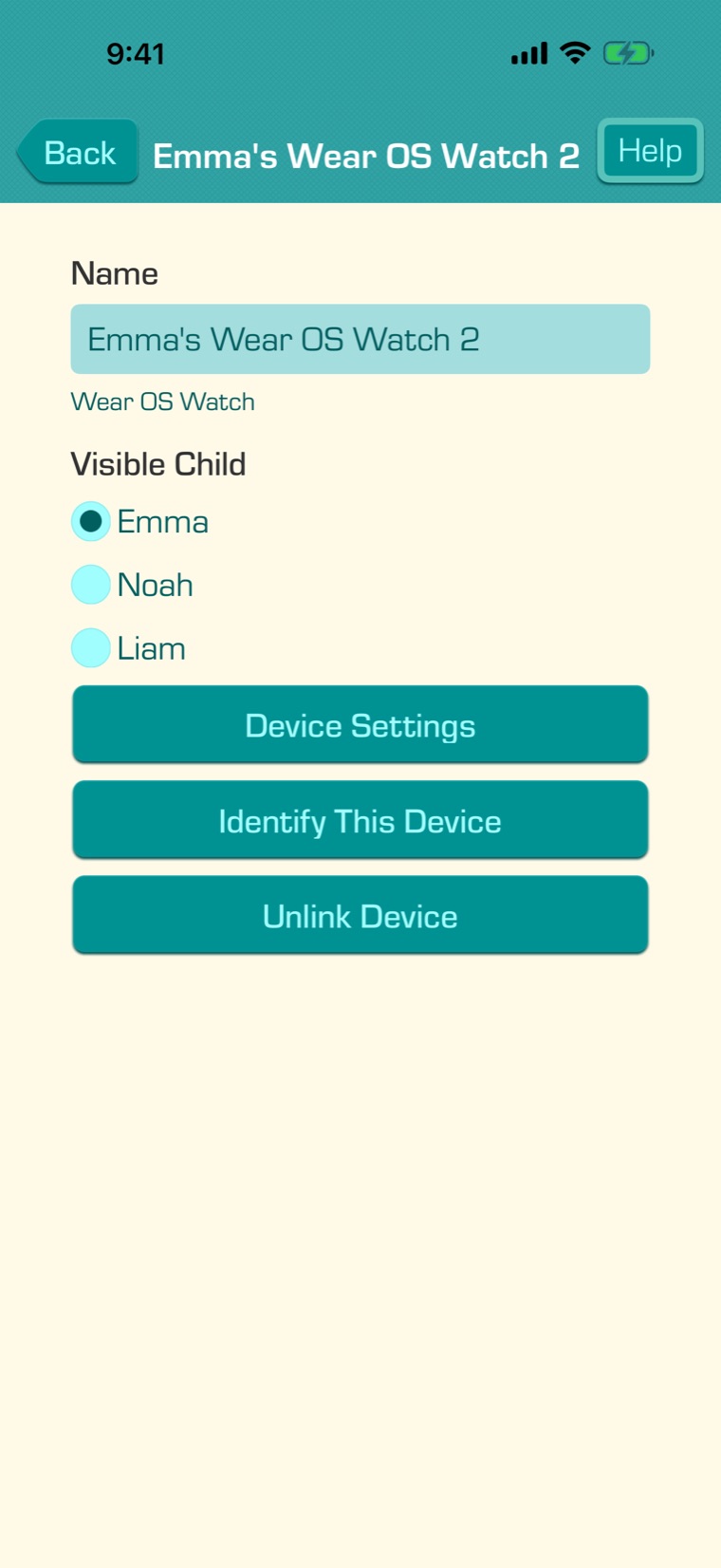
The watch is linked right away and shows your first child. To choose another child, tap the watch in “Linked Devices” and choose its “Visible Child”. A watch shows one child.

Here you can also rename the watch, choose its language and notifications under “Device Settings”, use “Identify This Device” to show a message on it, or “Unlink Device”.

4

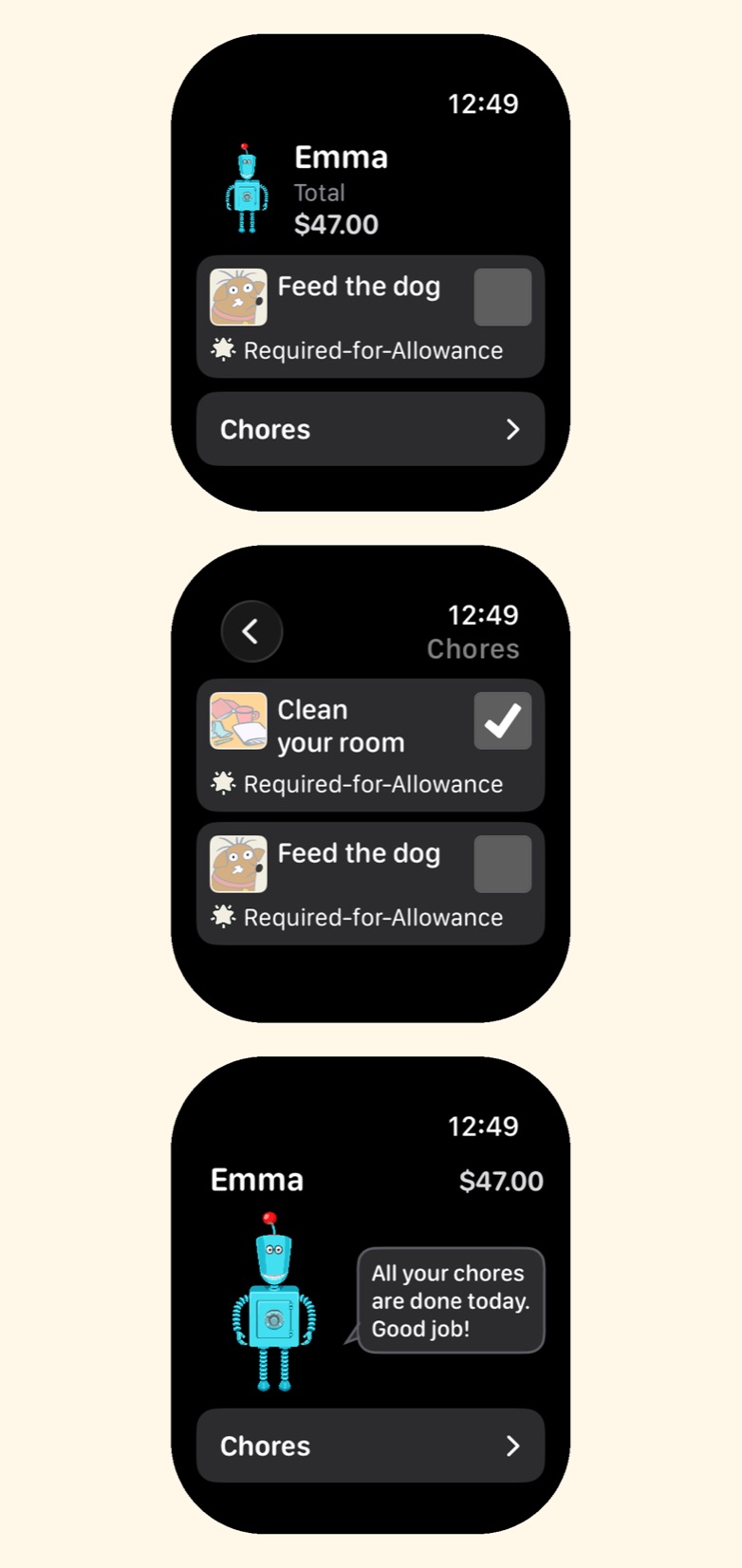
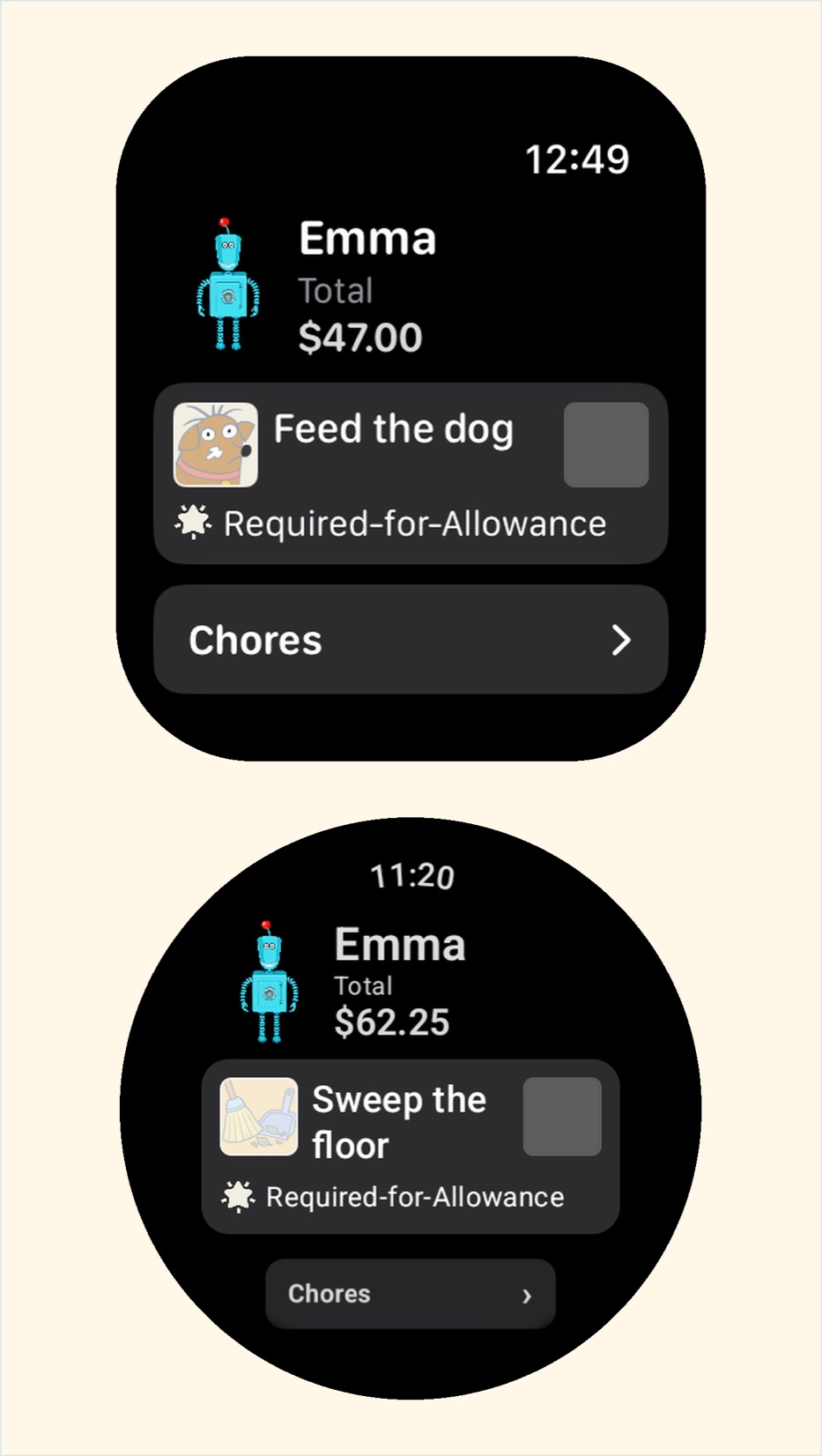
On the watch, your child sees their total, their next chore and “Chores”, the list of today’s chores. They tap a check box to check a chore off, and the robot cheers when everything is done. If a chore needs a parent or a photo, the watch says so.

With Chore Times of Day, the watch lists only the chores your child can do now.

5

Complications and tiles: add Chores & Allowance Bot to a watch face to see the next chore, the chores left today and the total. On an Apple Watch (watchOS 26 or later), touch and hold the watch face, tap “Edit”, and choose it for a complication. On Wear OS there’s also a tile: swipe from the watch face to find it.

6

Widgets show your children’s chores on your Home Screen:

  • Child’s Next Chore (small or medium): one child’s next chore. Your child taps it to check the chore off right from the widget.
  • Chores & Allowance: every child, with the chores they have left.
  • Chores Left on the iPhone and iPad Lock Screen.

To add one on iPhone or iPad, touch and hold an empty spot on the Home Screen, tap “Edit”, then “Add Widget”, and choose Chores & Allowance Bot. On Android, tap your child, then “Edit Child”, then “Add Widget to Home Screen”, or add it from your launcher’s widget list. On a Mac with Apple silicon, Control-click the desktop and choose “Edit Widgets”.

7

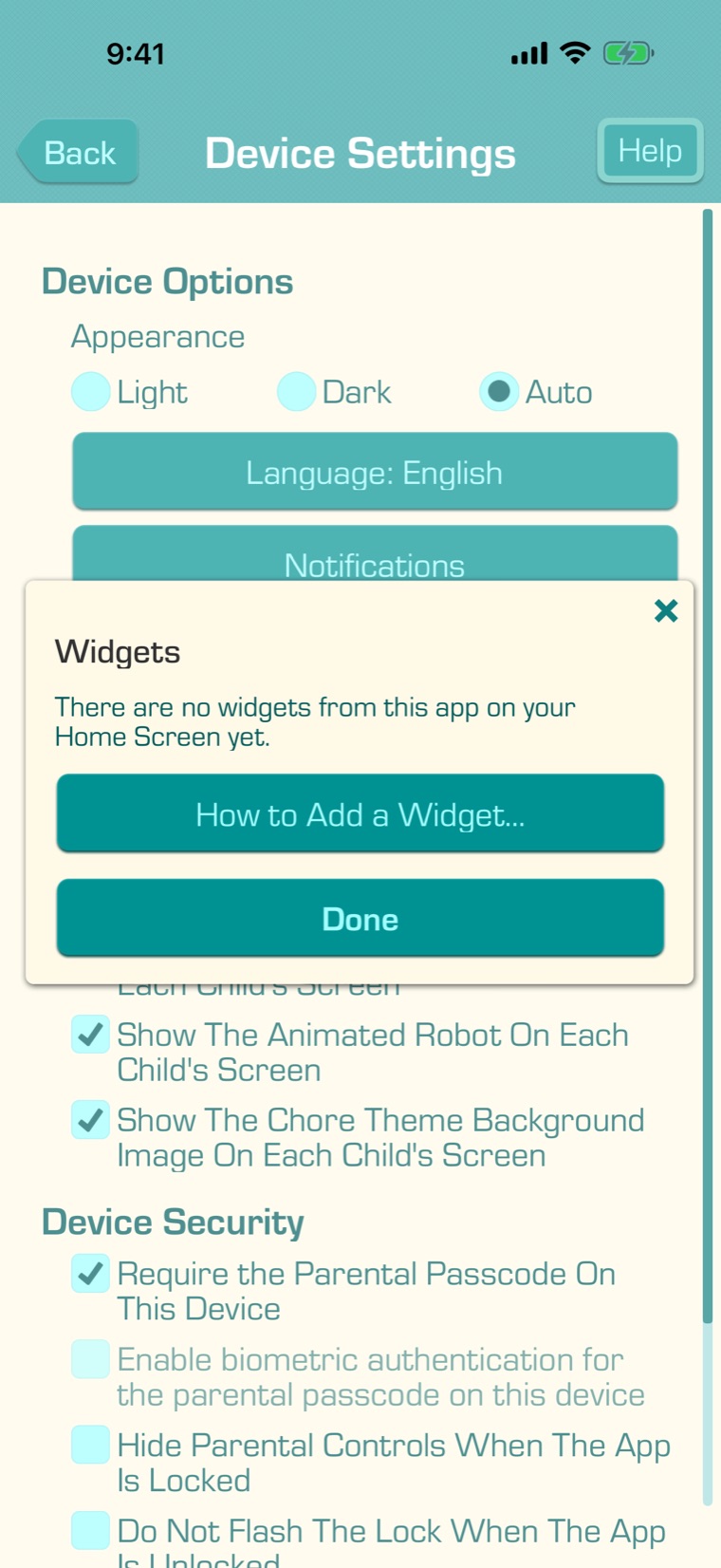
A new Child’s Next Chore widget says “Tap to choose a child”. Tap it, or open the Settings tab, then “Device Settings”, then “Widgets…”. There you choose the child for each widget, and which children the other widgets show.

8

Siri and Shortcuts on iPhone and iPad need no setup. Say, for example:

  • “What’s my next chore in Chores & Allowance Bot?”
  • “Check off Emma’s next chore in Chores & Allowance Bot.”
  • “How much does Emma have in Chores & Allowance Bot?”
  • “Record a purchase for Emma in Chores & Allowance Bot.”

Siri uses the child you name, or the one this device shows. Parent changes, like recording a purchase, aren’t possible on a child’s linked device.